How To Use Drag and Drop Fields To Form Builder
April 17, 2026
1. Go to Form Builder
- From the dashboard, navigate to Forms.
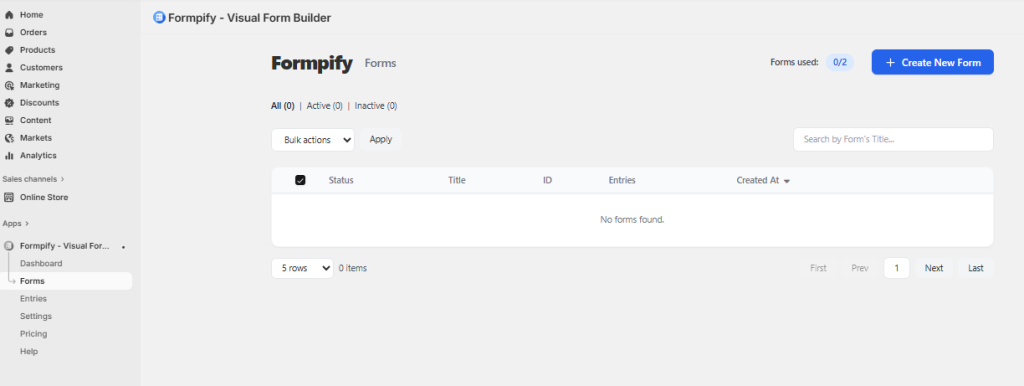
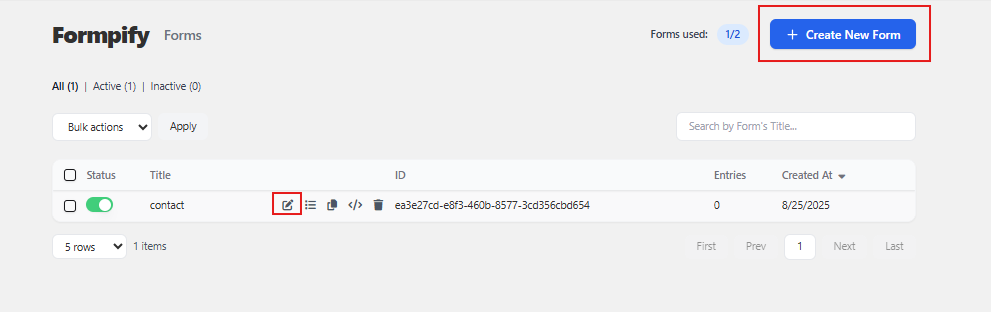
- Click Create New Form (or select an existing form to edit).
- You will be taken to the Template Selection screen
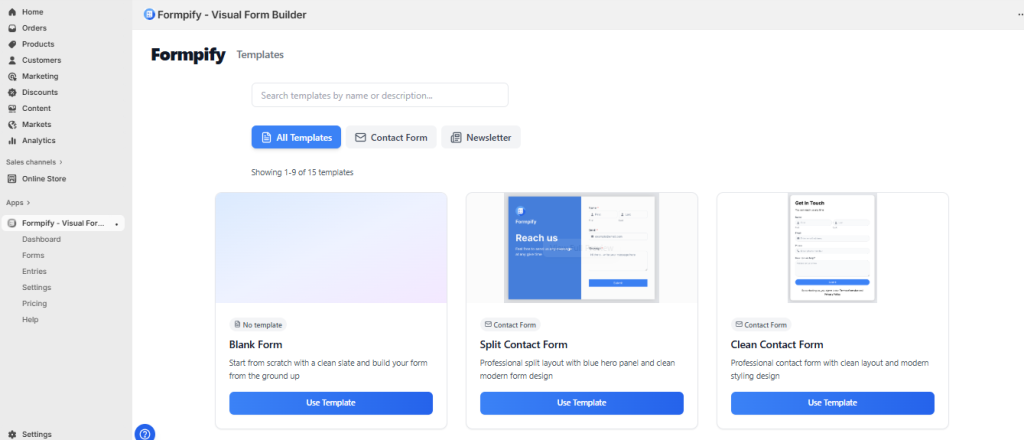
- Click Use Template on your preferred option → Enter a Form Title and Form Description → Click Create Form
- You will be directed to the Form Builder screen.
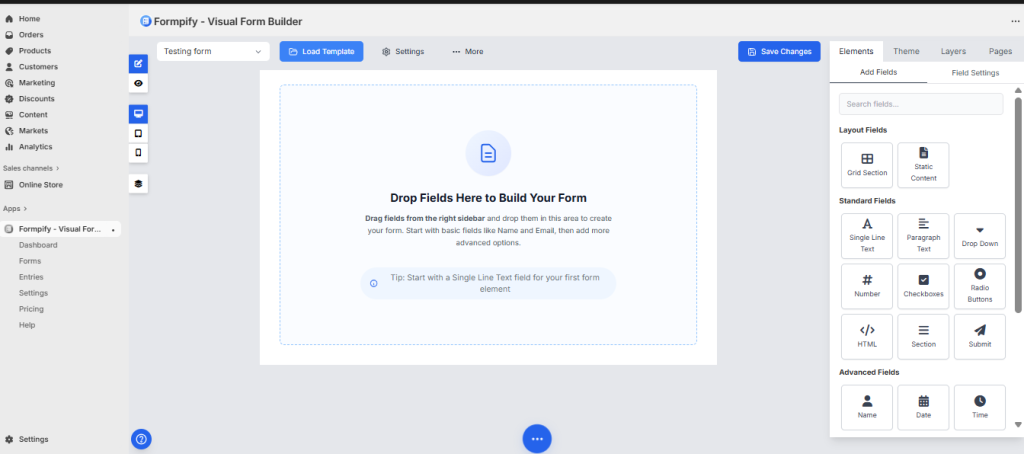
2. Drag & Drop Fields
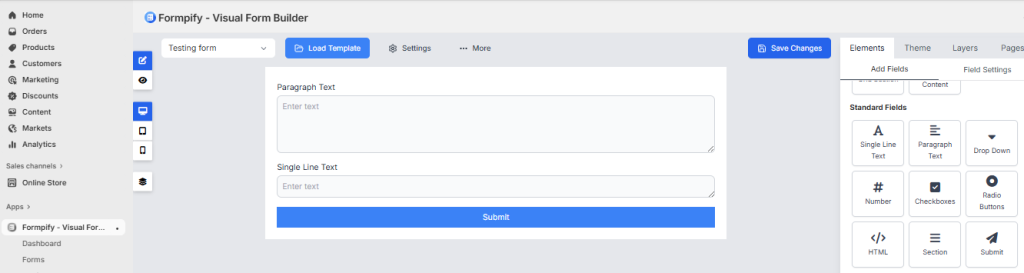
- On the right panel, select a field type (e.g., Text, Email, Dropdown).
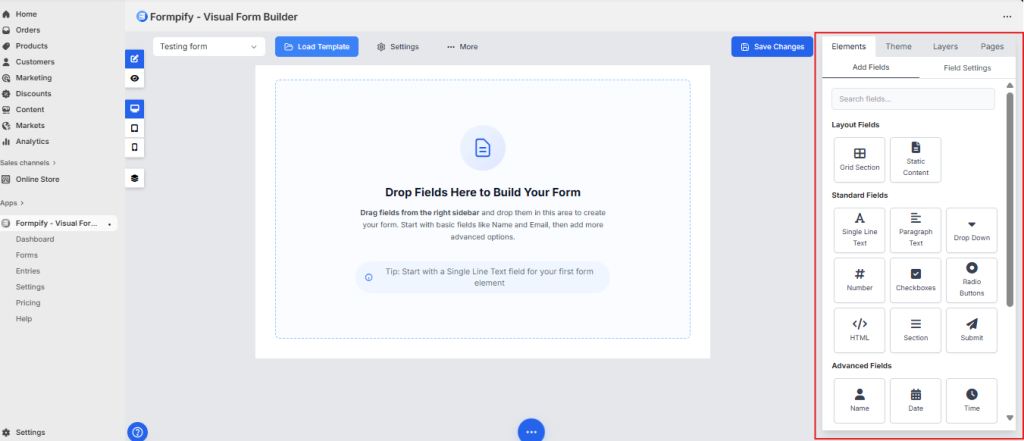
- Drag & drop it into the preview area on the left.
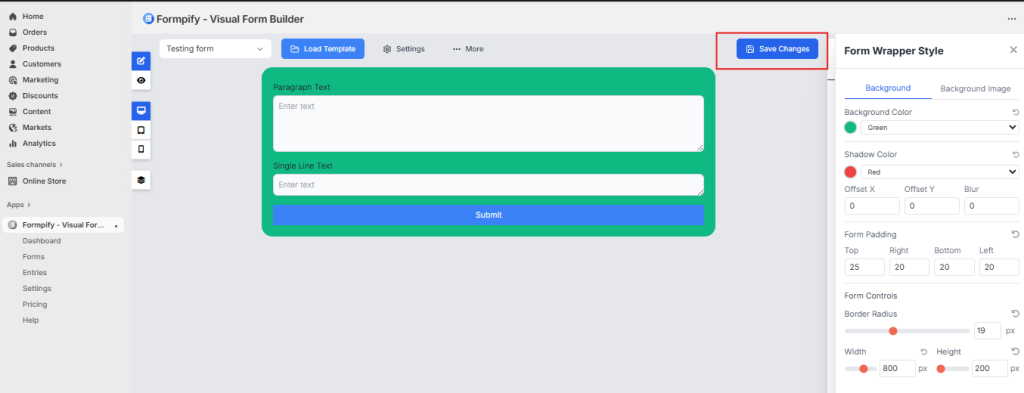
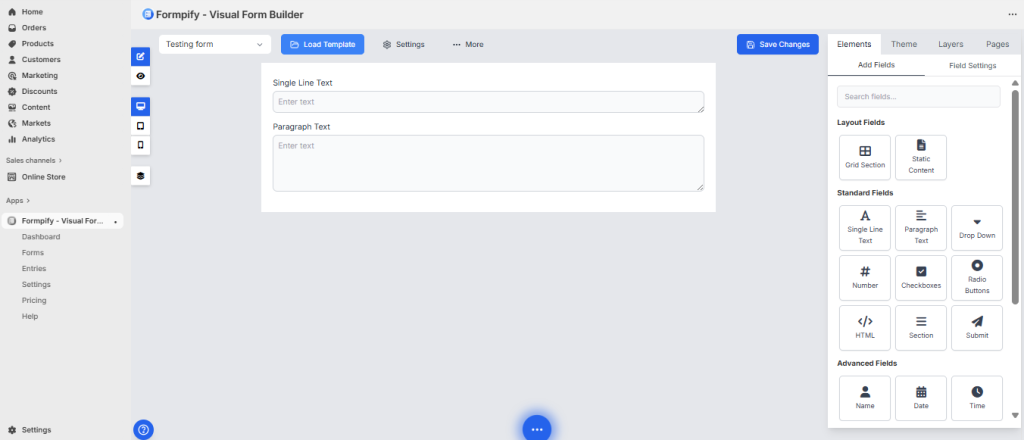
For example, you drag and drop two fields — Single Line Text and Paragraph Text — onto the form.
3. Reorder Fields
- To change the order of fields, click and drag a field up or down inside the preview area.
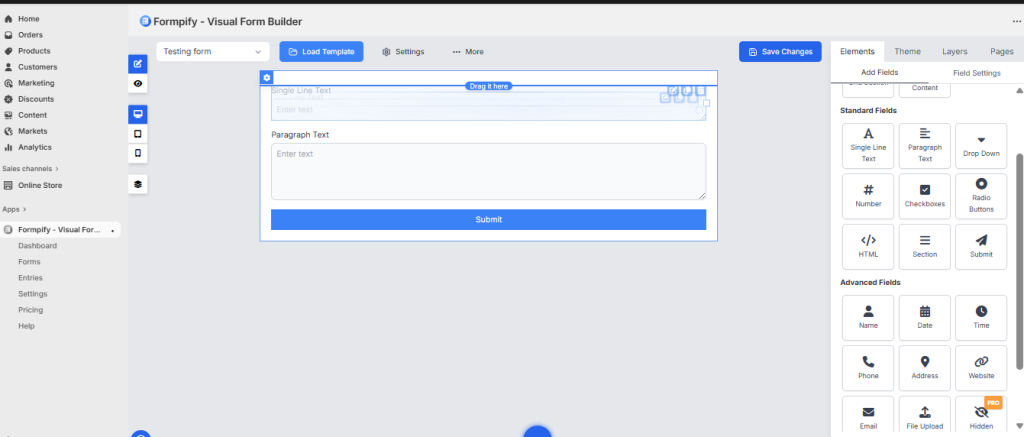
- Drop it in the new position to rearrange the form layout.
4. Edit a Field
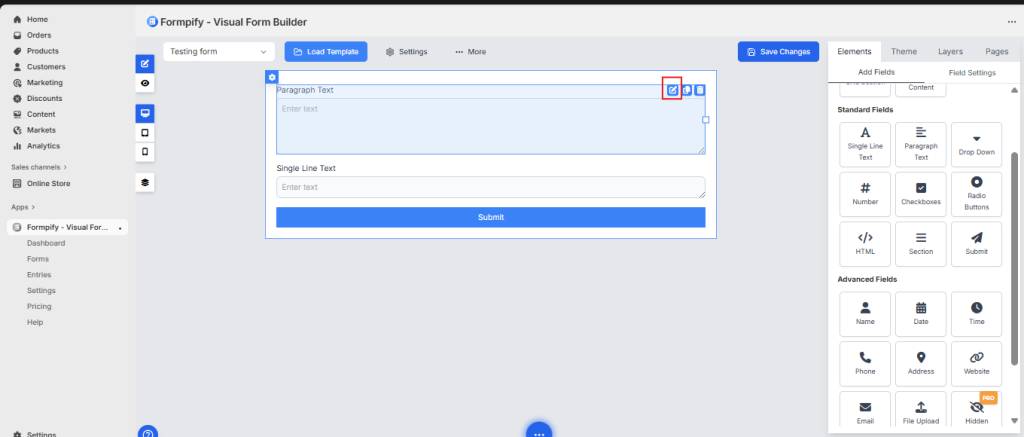
- Hover over a field in the preview area.
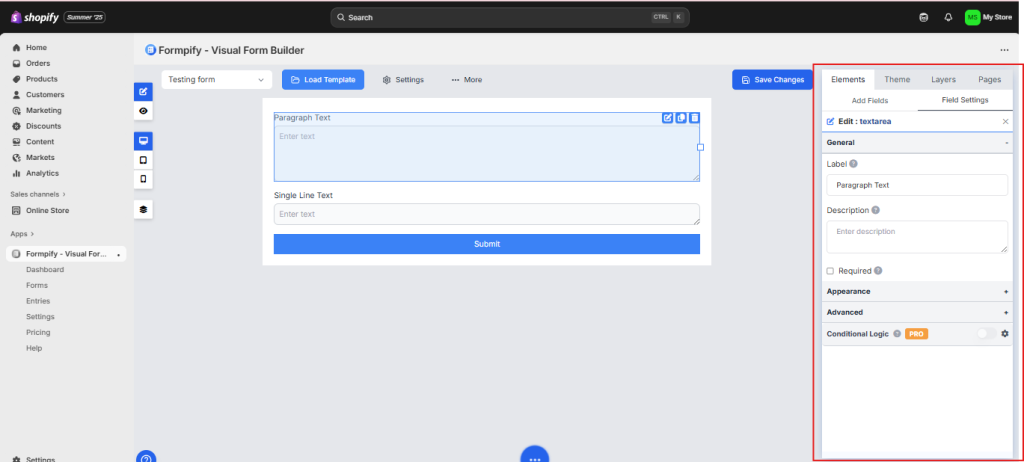
- Click the pencil icon to edit label, placeholder, or field settings.
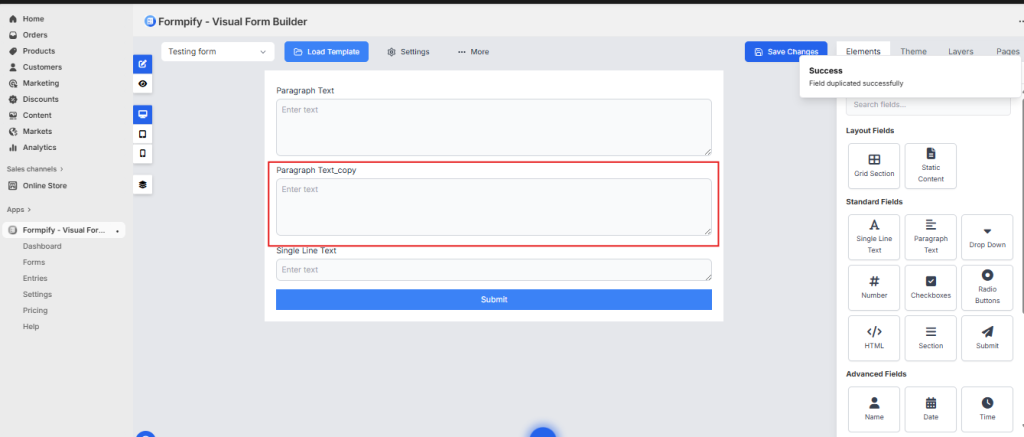
5. Duplicate a Field
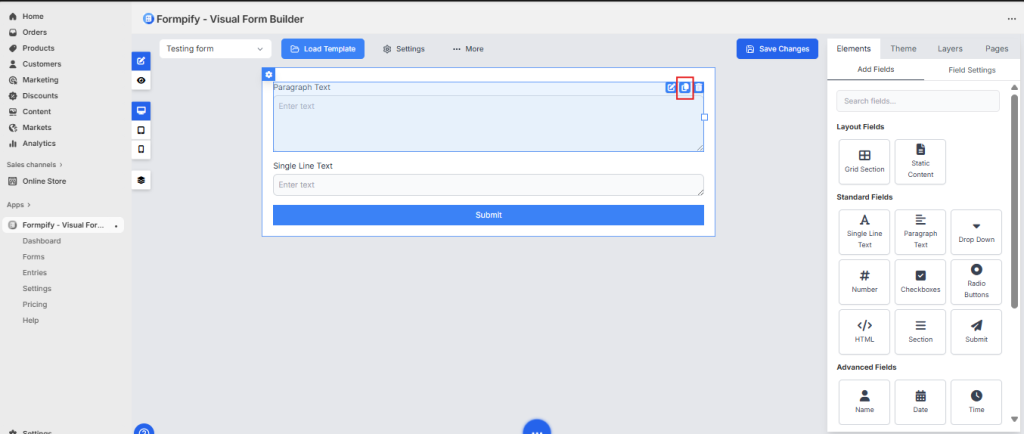
- Hover over the field.
- Click the duplicate icon to make a copy.
6. Delete a Field
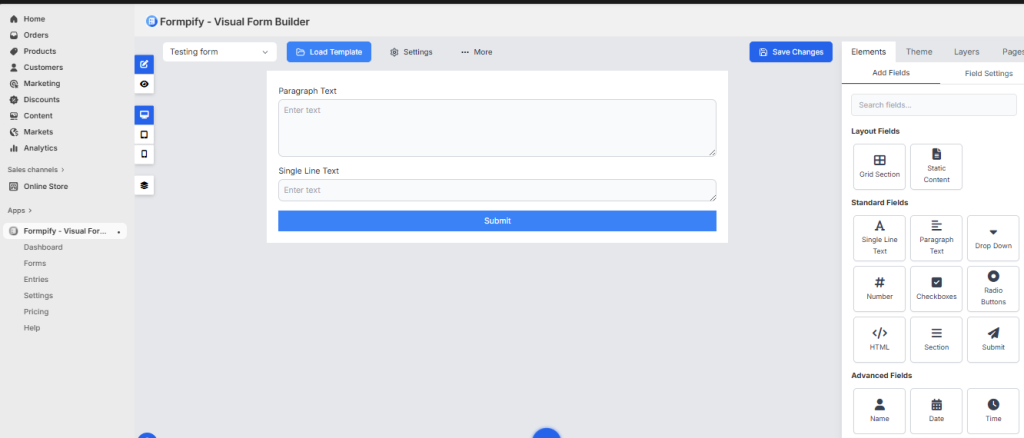
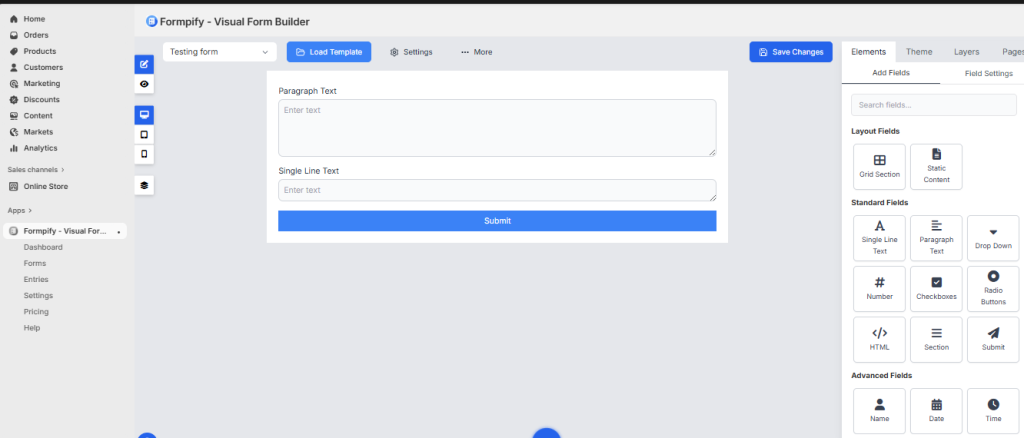
- Hover over the field.
- Click the trash icon to remove it.
7. Edit Form Wrapper Design
- Click "Edit Form Wrapper Design" above the preview area.
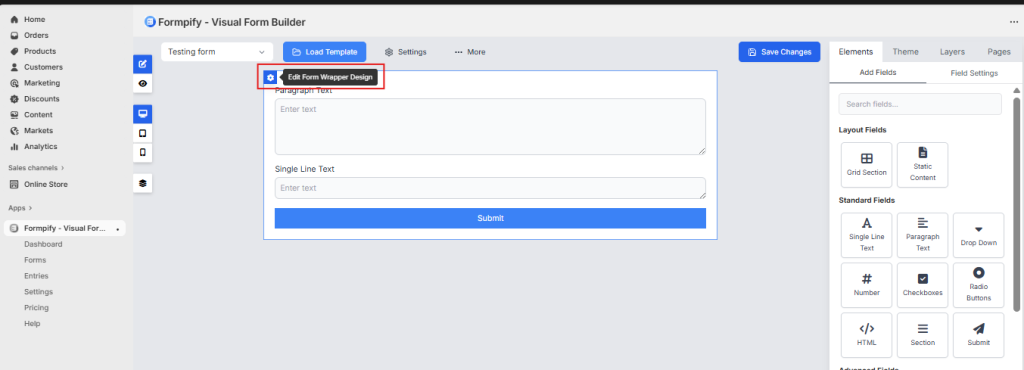
- Adjust layout, background, borders, spacing, and styling of the form container.
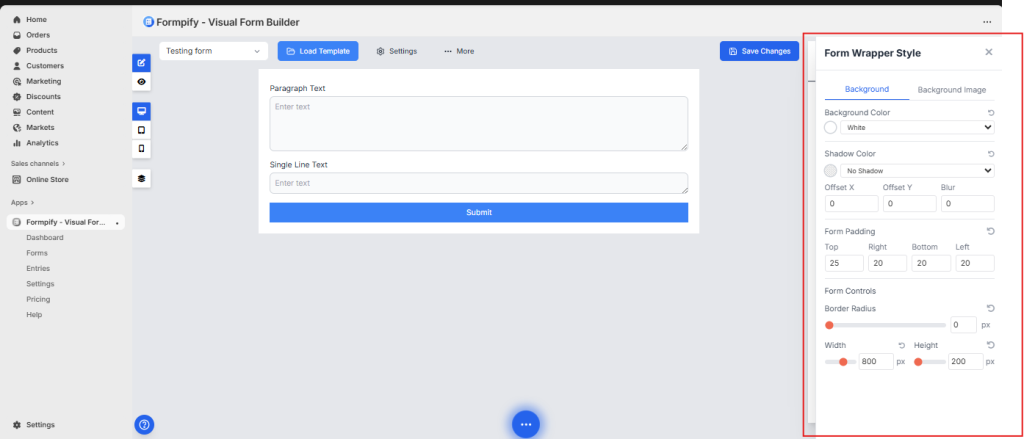
For example
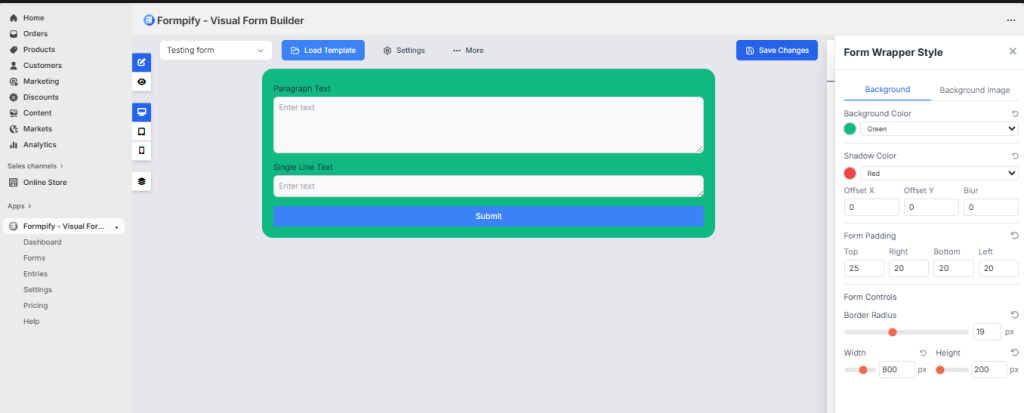
- Save to apply changes.