
The Ultimate Shopify Form Design Guide: Typography, Colors & 1-Click Theme Sync
How to match input borders, button radii, and fonts to create high-converting forms that feel like native parts of your Shopify theme.
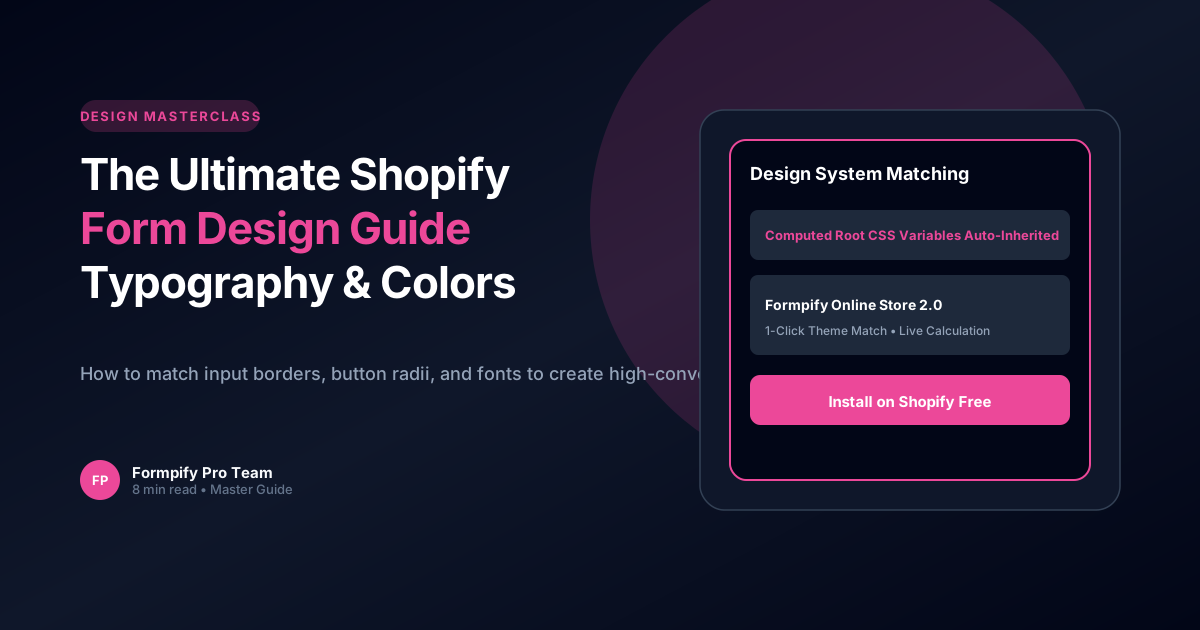
- Visual inconsistency is the #1 reason storefront visitors distrust third-party form widgets.
- Formpify automatically reads root CSS variables from your Shopify theme (fonts, corner radii, primary button color).
- Provides granular overrides for padding, margin, label letter spacing, and dark container themes.
- Ensures responsive typography scaling across mobile, tablet, and widescreen monitors.
Table of Contents
1. Why This Solution Drives Higher Storefront Conversions
How to match input borders, button radii, and fonts to create high-converting forms that feel like native parts of your Shopify theme.
In modern e-commerce, static forms and rigid default templates often create significant friction for buyers. When prospective customers cannot easily convey their unique requirements or receive immediate pricing feedback, abandonment rates soar past 60%. Implementing The Ultimate Shopify Form Design Guide: Typography, Colors & 1-Click Theme Sync directly on your Shopify storefront eliminates these bottlenecks, transforming passive site traffic into highly qualified, ready-to-buy inquiries.
Whether you operate a direct-to-consumer brand, a bespoke manufacturing workshop, or a fast-scaling B2B wholesale operation, offering intuitive, branded form experiences builds immediate consumer trust and establishes a clear competitive advantage over generic storefronts.
Key Insight for Shopify Merchants
Visual inconsistency is the #1 reason storefront visitors distrust third-party form widgets.
2. Core Architecture & Essential Capabilities
Building an effective workflow on Shopify requires a balance of visual aesthetics, intuitive form controls, and seamless backend data synchronization. Formpify makes this possible with zero coding required.
Here are the primary architectural capabilities powering this workflow:
- Key Feature: Formpify automatically reads root CSS variables from your Shopify theme (fonts, corner radii, primary button color).
- Key Feature: Provides granular overrides for padding, margin, label letter spacing, and dark container themes.
- Key Feature: Ensures responsive typography scaling across mobile, tablet, and widescreen monitors.
By organizing complex selections into clear, digestible steps, customers remain engaged and confident throughout the entire interaction.
3. Step-by-Step Setup & Implementation Guide
Setting up this workflow in your Shopify store takes only a few minutes. Follow these practical steps inside the Formpify visual builder:
- Select or Create Your Form: In your Shopify Admin, open the Formpify app and click Create Form, or choose a specialized pre-built template from the template library.
- Add & Customize Fields: Drag the required field types (such as Card-style Radio, Dynamic Checkboxes, Number Inputs, Date Pickers, or File Uploads) onto your form canvas.
- Configure Rules & Formulas: Open the right-hand settings panel to assign conditional visibility rules, mathematical pricing formulas, or required validation parameters.
- Connect Integrations & CRM: Link your form directly to your email platform (Klaviyo, Mailchimp, Omnisend) or CRM (HubSpot, Salesforce, Google Sheets) for automatic lead dispatch.
- Embed in Your Theme: Open the Shopify Online Store 2.0 Theme Editor and add the Formpify App Block to any product template, landing page, or slide-out drawer.
⚡ Pro Implementation Tip
Always preview your form across mobile screen sizes. Formpify's card-style inputs and lightweight embed engine ensure sub-50ms execution and frictionless touch-friendly interactions on all smartphone devices.
4. Best Practices for Long-Term E-commerce Growth
To maximize lead conversion rates and maintain an exceptional user experience, implement these proven best practices:
- Progressive Disclosure: Keep initial questions simple and concise. Use conditional logic or multi-step flows to reveal detailed questions only when necessary.
- Transparent Estimates: If providing pricing or deposit totals, itemize base rates, add-on options, and applicable taxes clearly so buyers understand exactly what is included.
- Automated Follow-ups: Send an immediate branded PDF receipt or auto-responder email to confirm receipt and set clear expectations for next steps.
- Data Hygiene & Security: Leverage built-in Google reCAPTCHA v3 and Honeypot spam traps to ensure your database remains clean and protected against bot submissions.
By pairing clean frontend design with robust backend automation, your store can scale inbound quote inquiries efficiently without increasing manual administrative workload.
Design Flawless Forms
Experience 1-click Shopify theme auto-inheritance.
Explore More Shopify Form Guides
 Product Updates
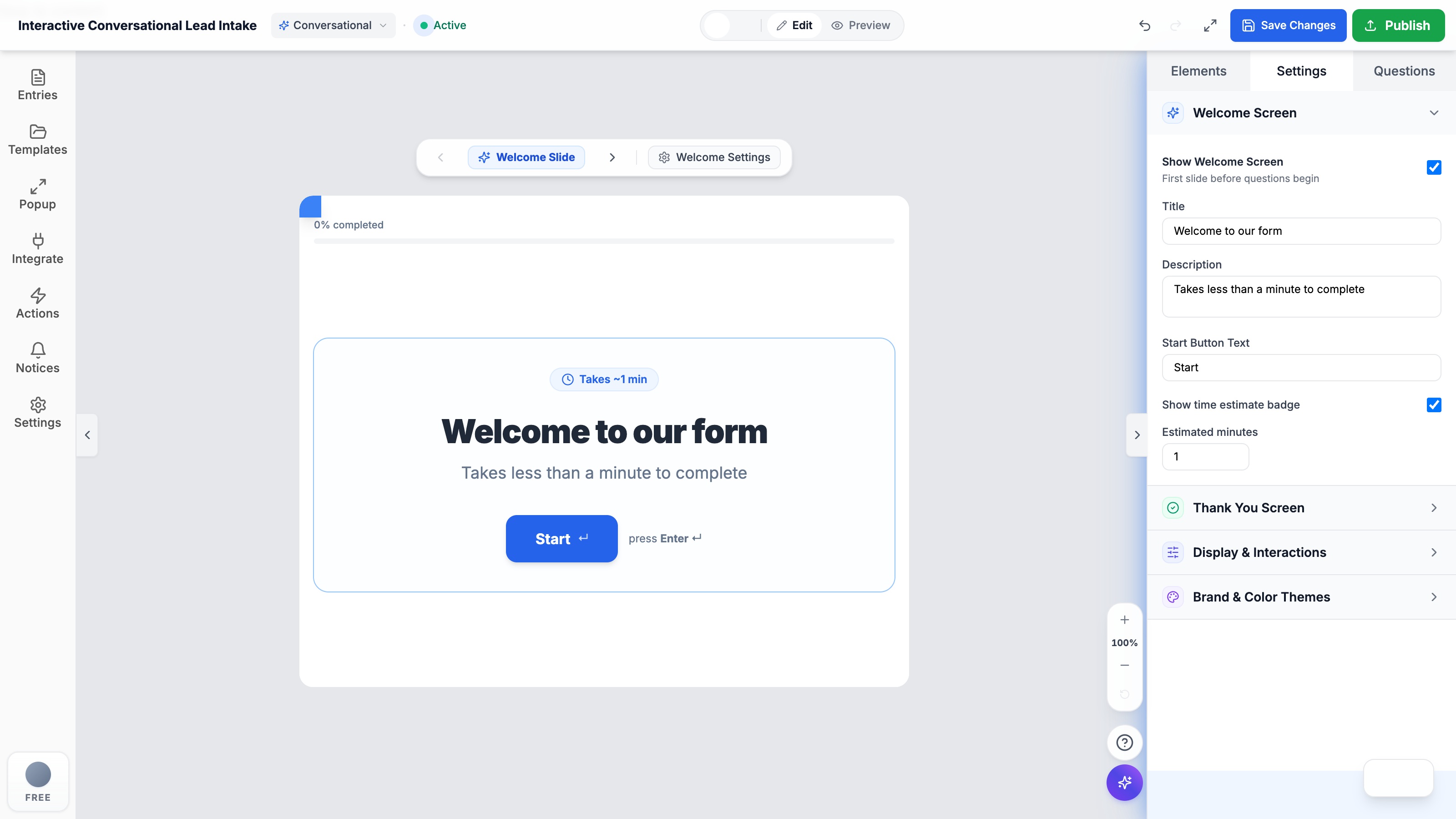
How to Build High-Converting Shopify Forms: The Interactive Conversational Form Guide (Typeform Alternative)
Tired of clunky, abandoned Shopify forms? Learn how interactive 1-question-at-a-time conversational Shopify forms eliminate mobile drop-offs, boost completions by 280%, and integrate natively with your Shopify theme.
 Product Updates
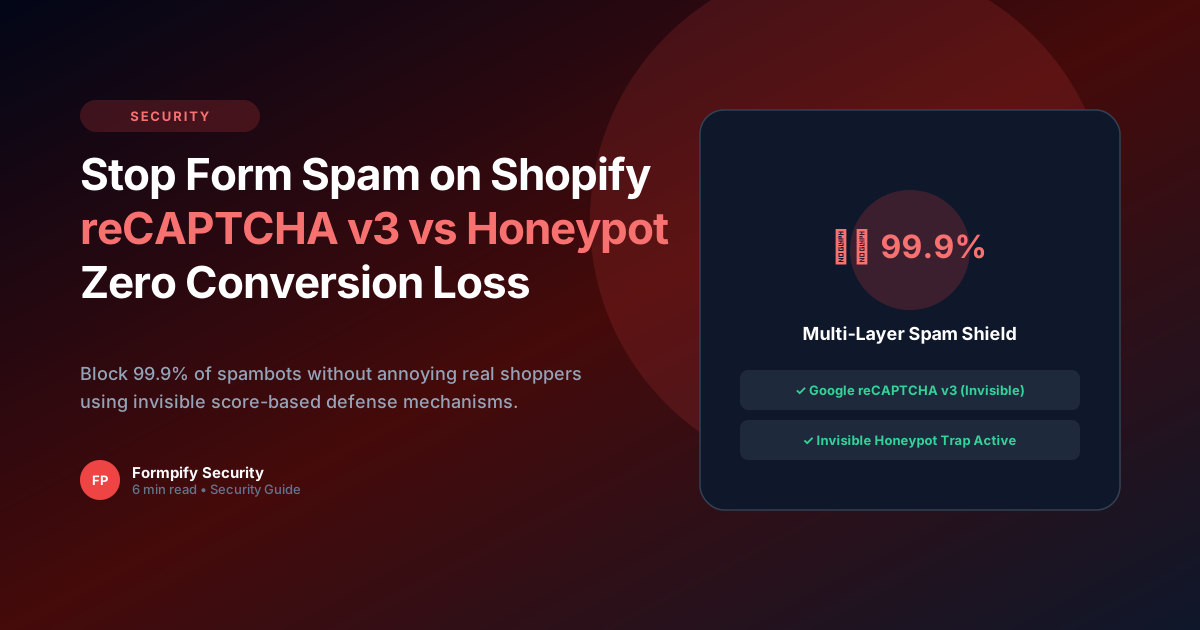
How to Stop Form Spam on Shopify: Google reCAPTCHA v3 vs Invisible Honeypot
Stop receiving hundreds of spambot submissions. Discover how invisible behavioral analysis and honeypot traps protect your inbox with zero conversion loss.
 Product Updates
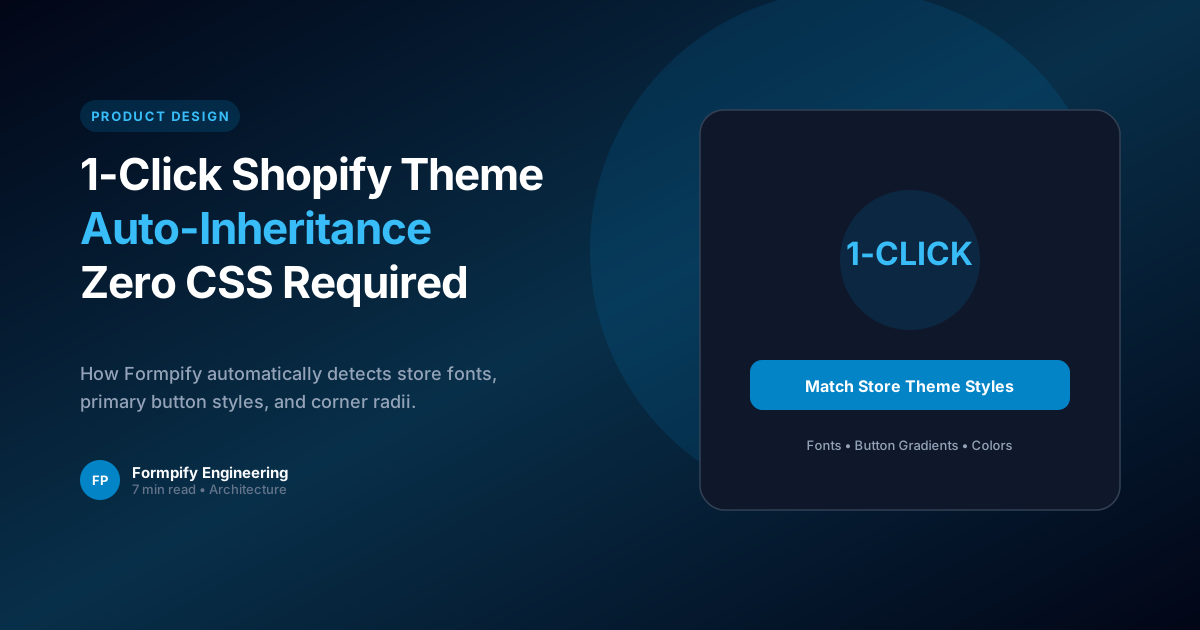
Why 1-Click Shopify Theme Auto-Inheritance is the Future of Storefront Form Design
Stop wasting hours tweaking CSS. Discover how intelligent theme inheritance creates seamless, native-feeling storefront forms.
Ready to supercharge your Shopify forms?
Join thousands of merchants creating custom forms, surveys, and live cost calculators.