
How to Configure Email Settings
Sender Identity
Configure your custom SMTP settings to send form notification emails directly from your own domain.
By default, Formpify uses its own reliable, high-deliverability infrastructure to send your form notifications. However, if you want emails to come directly from your own custom domain (e.g., hello@yourdomain.com), you can set up a custom SMTP connection. This ensures complete brand consistency and can further improve email deliverability to your team or clients.
1. Accessing Sender Identity Settings
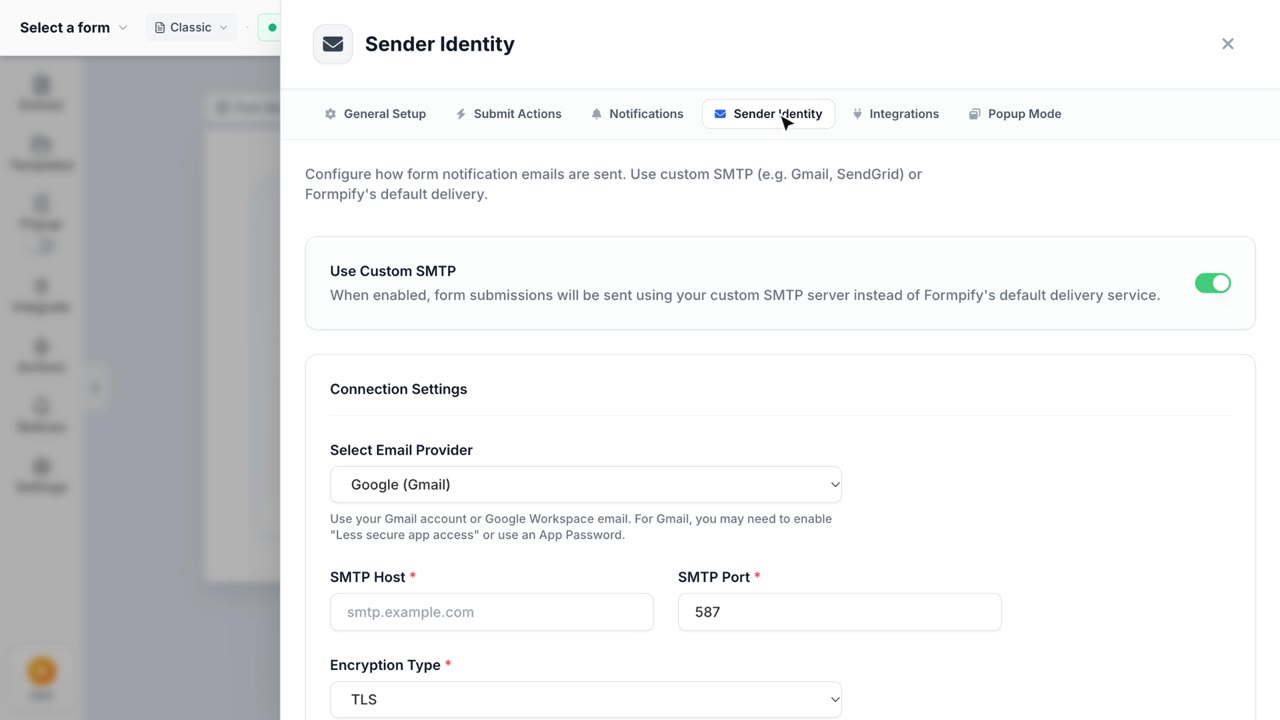
Open your Form Builder and click the Email icon on the left navigation sidebar. This will open the Sender Identity drawer. By default, you will see a banner confirming that the "Default Email Service" is active.
2. Enabling Custom SMTP
To switch to your own mail server, toggle on the Use Custom SMTP switch. This will reveal the complete configuration form divided into three main sections.
3. Connection Settings
- Select Email Provider: Formpify provides presets for major services like Google (Gmail/Workspace), SendGrid, Amazon SES, Outlook, Mailgun, and more. Selecting a provider will automatically fill in the correct Host and Port for you.
- SMTP Host & Port: If you select "Other", you will need to manually enter your provider's SMTP server address (e.g.,
smtp.example.com) and port (usually587or465). - Encryption Type: Choose between TLS, SSL, or None based on your provider's requirements.
4. Authentication & Sender Info
- Username & Password: Enter the credentials used to authenticate with your SMTP server.
Note for Google Workspace/Gmail: If you have Two-Factor Authentication enabled, you cannot use your normal account password. You MUST generate and use a 16-character App Password from your Google Account security settings. - From Email: This is the exact email address that recipients will see as the sender. It must be authorized by your SMTP provider.
- From Name (Optional): The display name shown in the recipient's inbox (e.g., "Your Company Name" or "Support Team").
5. Testing and Saving
Before saving your configuration, it is highly recommended to verify your credentials:
- Scroll to the bottom to the Test Email Connection section.
- Click the Test Connection button. Formpify will attempt to dispatch a diagnostic email using your provided credentials.
- If the connection is successful, a green confirmation box will appear.
- Once verified, click the dark Save Settings button to apply your new Sender Identity to all notifications for this form.