
How to Configure Notifications
April 17, 2026
Formpify Academy
Email Notifications
Set up automated alerts for your team or dynamic auto-responders for your customers using merge tags.
Formpify allows you to send automated email notifications whenever someone submits your form. You can use this to alert your team (Admin Alerts) or send an auto-responder back to the customer.
1. Accessing Notifications
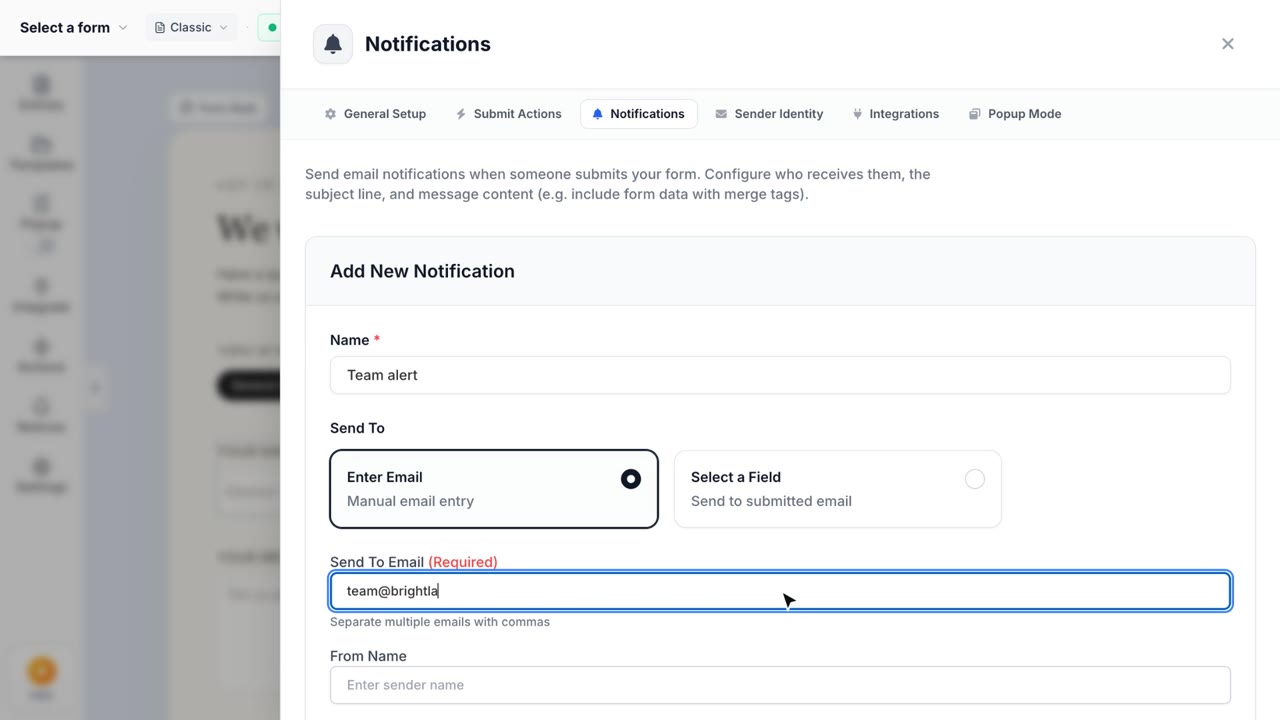
Open the Form Settings drawer by clicking the gear icon, then navigate to the Notifications tab. Click on "Add New Notification" to get started.
2. Admin Alerts vs. Auto-Responders
In the "Send To" section, you have two choices:
- Enter Email: Type in the email addresses of your team members. This is perfect for Admin Alerts.
- Select a Field: Choose an Email field from your form. The notification will be sent to whatever email address the customer typed in. This is used for Auto-Responders.
3. Using Merge Tags
You can dynamically inject data submitted by the customer into the email subject or body. For example, using the merge tag {all_fields} will automatically generate a clean, formatted table containing all the form fields and their submitted values.