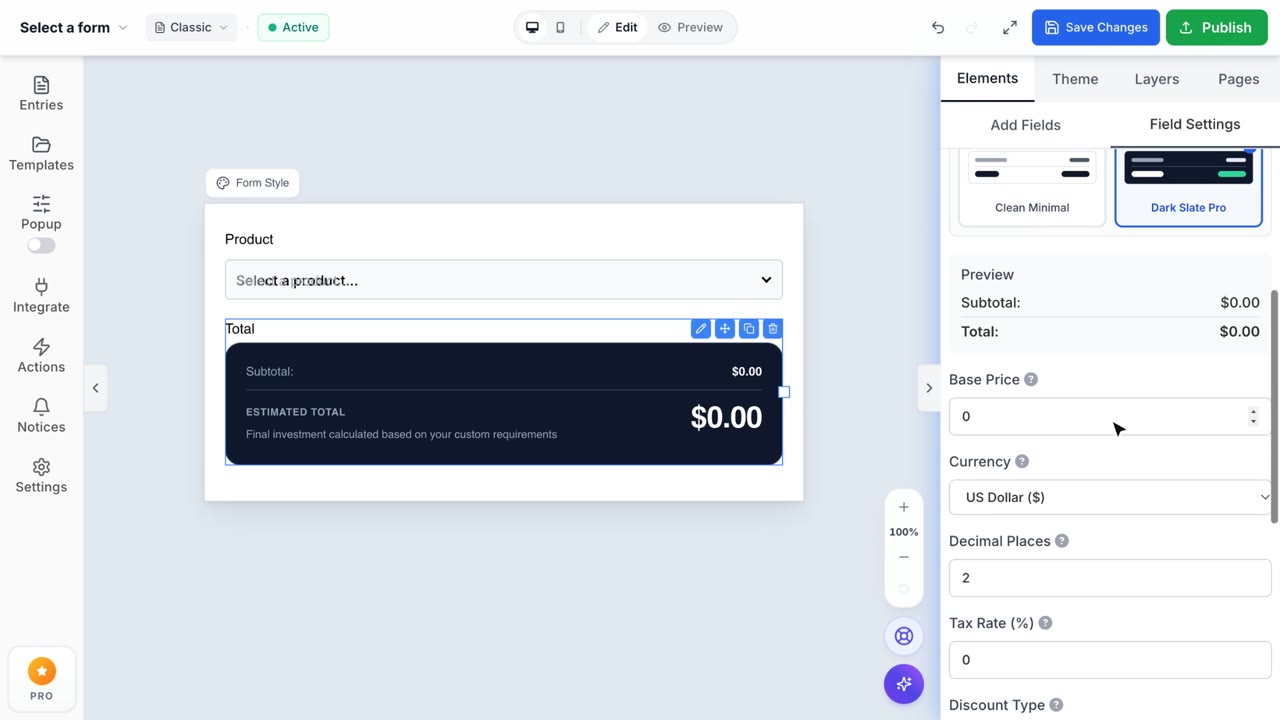
How to use "total" field
Access Form Builder
- From the Shopify Admin dashboard, navigate to Apps -> Formpify-Visual Form Builder.

- Click Forms from the left sidebar.

- Click “Create New Form” or select an existing form to edit.

- Choose a template and click Use Template.

- Enter the Form Title and Form Builder interface.

- You will be directed to the Form Builder screen.
Add a Total Field
In the right panel, open the Elements. Under Advanced Fields, click Total

The Total field will be added to your form.

The Total field is used to automatically calculate and display the total value based on user inputs. It is commonly used for:
- Order forms
- Pricing calculations
- Booking forms
- Payment summaries
Edit Total Field Settings
Click the Edit (pencil) icon on the Total field to open the settings panel.

General Section

Label
- Defines the name of the Total field displayed on the form.
- Example: Total Amount
Description
- Adds additional information below the field.
- Example: This is the total amount you need to pay.
Pricing Settings
Preview: Displays a real-time preview of the calculation.
- Includes:
- Subtotal
- Total
- Example:
Subtotal: $0.00
Total: $0.00
This helps you verify how the total will appear to users.
Base Configuration
Base Price: The starting value added to the total.
- Example:0
- Use case:
- Fixed service fee
- Base product price
- Example: US Dollar ($)
Decimal Places: Controls how many decimal digits are displayed.
Tax Rate (%) : Percentage of tax applied to the
Discount Settings
Discount Type: Defines how discounts are applied.
- Options:
- No Discount
- Percentage.
- Fixed amount.
Calculation Settings
- Calculation Fields: Select fields used to calculate the total.
Display Options
- Show Breakdown: Displays detailed calculation to users.
Show Total: Displays the final total amount.
Breakdown Details
These options control what details are shown:
- Show Subtotal: Displays the subtotal before tax/discount
- Show Tax: Displays calculated tax amount
- Show Discount: Displays discount applied
Required:Determines if the Total field must be present.
- Options:
- Checked → Required
- Unchecked → Optional
Appearance section

Placeholder Text: The hint text displayed inside the field before the user enters a value.Field Label Visibility: Controls whether the field label is shown on the form.
- Options:
- Visible → The label is displayed
- Hidden → The label is not shown
Field Label Margin: Controls the spacing around the field label (outside spacing).
Field Padding: Controls the inner spacing inside the field.
Field Margin: Controls the spacing outside the entire field.
Custom CSS Class: Allows you to add a custom CSS class for advanced styling.
Advanced Section

- Visible: The field is displayed to all users on the form.
- Hidden: The field is not visible to users
- Administrative: The field is only visible to administrators
Conditional Logic: Allows the field to be shown, hidden, or triggered based on specific conditions.
Duplicate the Total Field
Hover over the Total field. Click the Duplicate icon. A new Total field with the same settings will be created.

Reorder the Total Field
Drag and drop the field to change its position in the form.

Delete the Total Field
Click the Trash icon to remove the field.

Save Changes
Click Save Changes to apply updates.

Publish
This option allows you to publish the form to your store, making it visible and usable for customers.