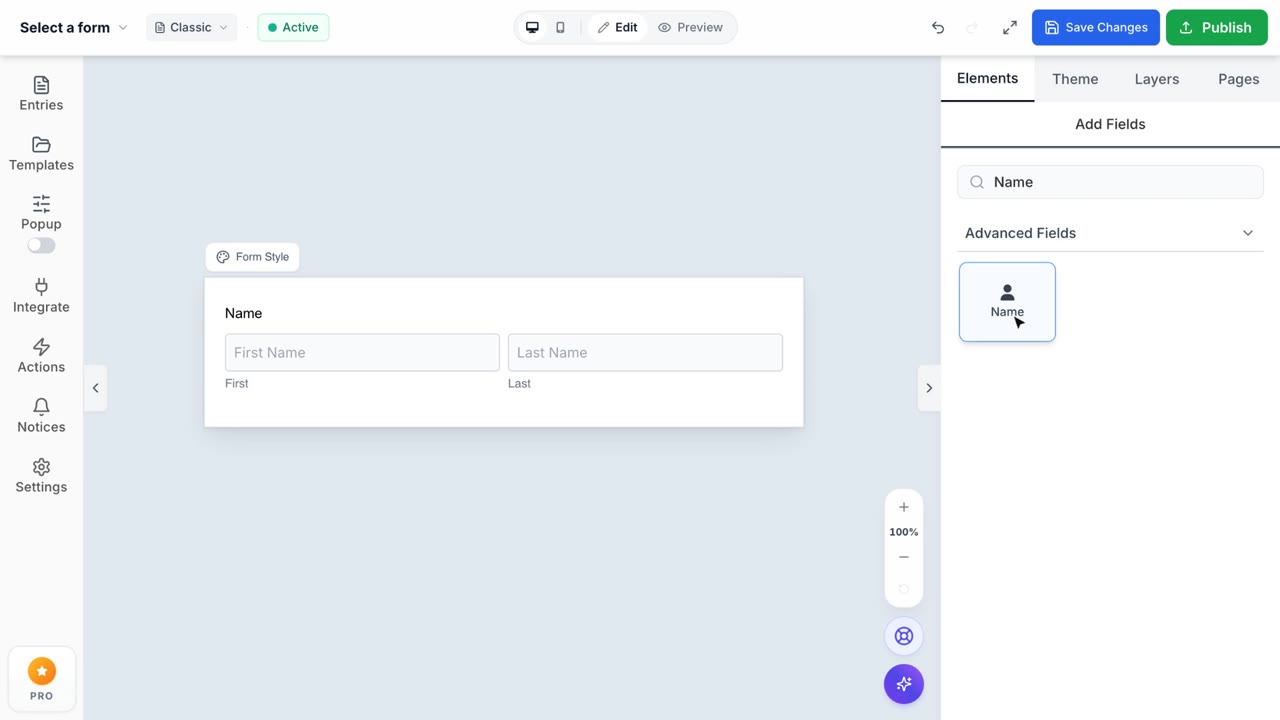
How to use “Name” field
April 17, 2026
After creating your form, you will be redirected to the Form Builder screen.

In the right-hand panel, open the Elements tab. Under Advanced Fields in the Add Fields section, click on Name to add it to your form.

Quick Action Icons
You can use the shortcut icons to:
- Edit details
- Adjust spacing (margin / padding)
- Duplicate the field
- Delete the field

General Settings:

- Label: Set the label for this field. This will be displayed to users
- Description: Provide additional information about this field. This will be displayed to users
- Name Field Settings: customize visible of the name (Prefix, First, Middle, Last, Suffix)
- Required: Mark this field as required to ensure users must fill it out
Appearance Settings:

- Placeholders: Set placeholders for each part of the name field
- Field Colors: Set individual colors for this field. These override the global theme colors
- Input Background
- Input Border
- Text Color
- Placeholder Text
- Hover Border
- Focus Border
- Field Label Visibility: Set the visibility of the field label. Options: Visible, Hidden
- Field Label Margin: Adjust the spacing around the field label

- Field Padding: Adjust the spacing around this field for better visual separation
- Field Margin: Adjust the spacing outside this field to control its position relative to other elements
- Field Icon: Add an icon to the input field for better visual appeal and user experience
- Field Border Radius: Set the border radius for this field in pixels
- Custom CSS Class: Add a custom CSS class to style this field
Advanced Settings:

- Default Value: Set a default value for this field
- Default Value: Set default values for each part of the name field
- Prefix Options: Define the available prefixes for the name field.
- Visibility: Set the visibility of this field. Options: Visible, Hidden, Administrative
Conditional Logic Settings:

Show or hide fields based on user answers. Available on Pro plan only