
How to Use the Hidden Field
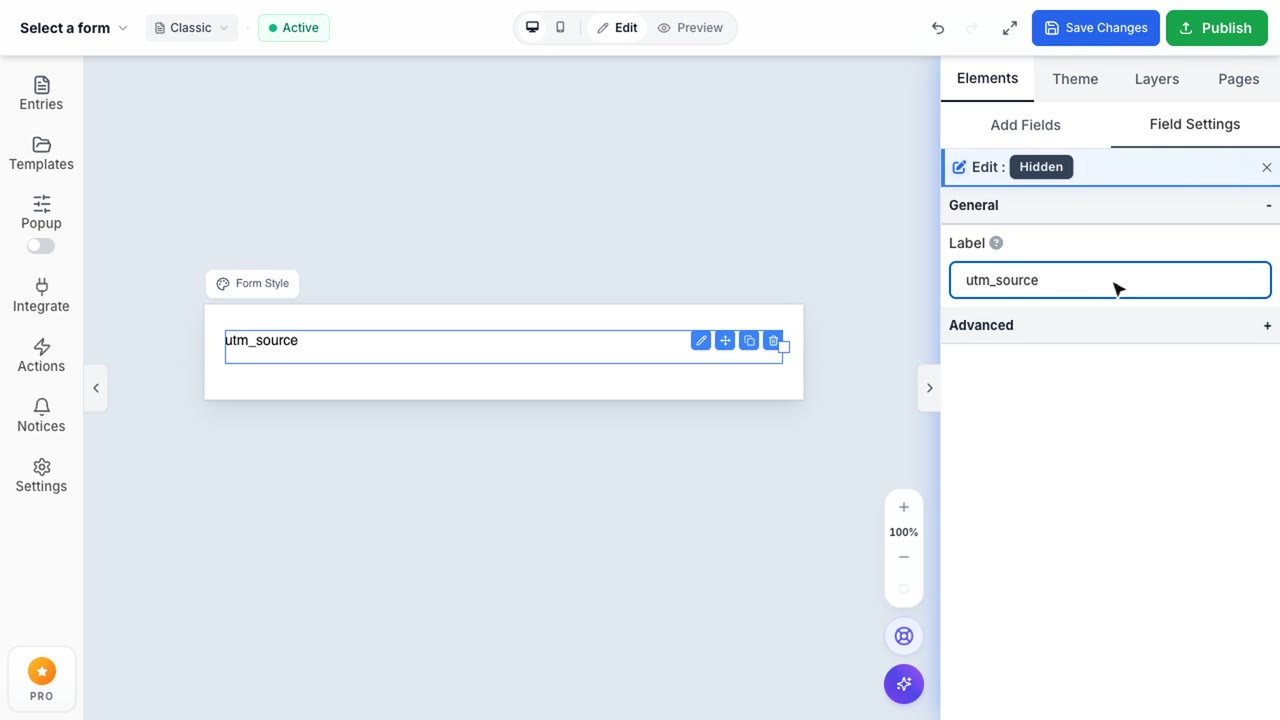
Hidden Field Settings
Silently capture background data without cluttering your form interface.
The Hidden field allows you to silently capture background data without cluttering your form interface. It is completely invisible to the respondent but is still captured and synchronized along with the rest of the submission data.
Common Use Cases
Hidden fields are essential for passing internal metadata through your form flow:
- UTM Tracking: Pass campaign tracking parameters (like
utm_sourceorutm_campaign) so you know exactly which marketing effort generated the lead. - Affiliate Tracking: Associate a submission with a specific affiliate ID for reliable commission tracking.
- Internal References: Pass a backend User ID or product SKUs natively into third-party integrations like HubSpot or Salesforce without relying on complex custom webhooks.
Setting Default Values
You can configure a static Default Value right inside the builder settings. Whenever the form is submitted, this predefined value will be sent automatically.
Alternatively, you can dynamically populate this value by passing URL parameters directly to the form page. For example, if you set the field's internal name to campaign, navigating to ?campaign=summer_sale will automatically inject "summer_sale" into the Hidden field.