
Publish and Embed Forms
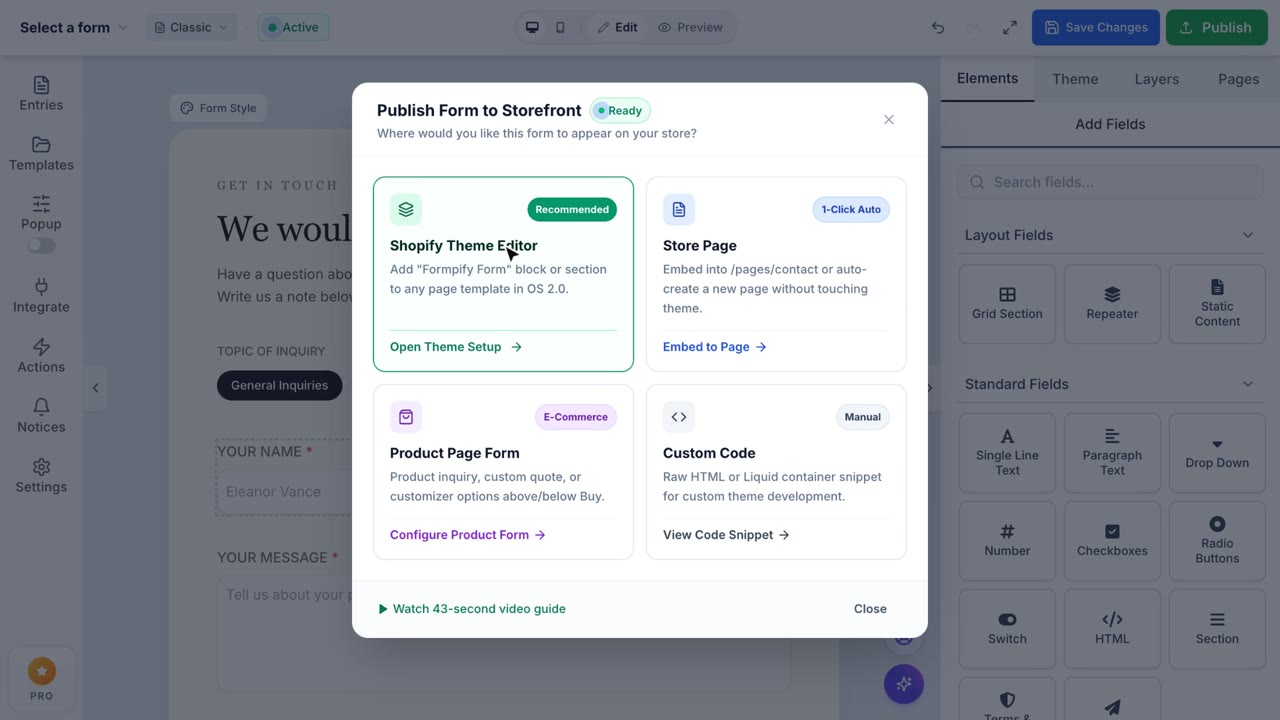
Save & Publish
Embed natively into Shopify Pages using the App Block configuration.
Formpify makes it incredibly simple to save your creative work and seamlessly publish your dynamic forms directly into any Shopify Page, Product, or Blog context using the native Shopify Theme App Block & App Embed integration. Follow the step-by-step guide below to go from your finished form design to a live, fully embedded form on your storefront.
Part 1: Save & Publish from Formpify
Step 1. Save Your Form
Once you are satisfied with your form layout in the Visual Builder, click the blue Save Changes button located in the top-right corner of the header. This commits your entire form configuration — fields, styling, validation rules, and conditional logic — to the cloud. You'll see a brief saving indicator, followed by a confirmation that your changes are saved.
Step 2. Click the Publish Button
Right next to the Save button, you will find the green Publish button. Click it to open the Publish Modal. Publishing makes your form available for embedding — it does not affect your store until you place the block in the Theme Editor.
Step 3. Generate Embed Code
The Publish Modal will display multiple integration options. Click the Generate Embed Code button. Formpify will instantly produce a unique Shopify Form ID tied to your specific form version. This ID is the bridge between your Formpify design and your Shopify theme.
Step 4. Copy the Form ID
Your unique Shopify Form ID will appear in a clearly highlighted field. Click the copy icon or manually select and copy the ID string. Keep this ID ready — you'll paste it into the Shopify Theme Editor in the next steps.
Part 2: Activate Formpify App Embed (Essential)
Before your forms can render and submit data on your storefront, the Formpify Theme App Embed must be turned ON in your active Shopify Theme. Formpify's App Embed securely runs the client-side rendering engine, responsive calculators, and validation logic without adding any bulky scripts or modifying your theme's Liquid template code.
Method A: 1-Click Activate via Formpify Admin (Recommended)
Formpify automatically monitors your active theme in real-time. If the App Embed is disabled, an alert bar will appear across your Formpify Admin (Dashboard, Forms, and Welcome pages):
- Click the 1-Click Activate button directly on the alert banner. Formpify will instantly deep-link into your Shopify Theme Editor with the App embeds tab opened and Formpify selected.
- Ensure the toggle switch next to Formpify is set to ON.
- Critical: Click the blue Save button in the top-right corner of the Shopify Theme Editor. Shopify does not apply embed changes to your live storefront until you save!
- Return to your Formpify tab or click Check. The alert bar will disappear immediately, replaced by a green 🟢 App Embed: Active badge.
Method B: Manual Activation
- In your Shopify Admin, navigate to Online Store → Themes.
- Click Customize next to your active theme.
- In the left sidebar navigation, click the App embeds icon (the third icon from the top, next to Sections and Theme settings).
- Locate Formpify in the list and toggle it ON.
- Click Save in the top-right corner of the Theme Editor.
Part 3: Embed in Shopify Theme Editor
Step 5. Open the Theme Editor & Add a Block
In the Theme Editor (Shopify Admin → Online Store → Themes → Customize), navigate to the page or section template where you want your form to appear. Click the Add block or Add section button in the left sidebar.
Step 6. Switch to the Apps Tab
When the block picker appears, you will see two tabs at the top: Sections and Apps. Switch to the Apps tab. This is where all installed Shopify app blocks are listed, including Formpify.
Step 7. Select the Formpify Form Block
From the Apps list, find and click the Formpify Form app block. This will inject an empty Formpify container directly into your page layout. You should see a placeholder block appear in the theme preview area.
Step 8. Paste Your Form ID
With the Formpify block selected, a settings panel will appear in the right sidebar. Locate the Form ID input field (marked with a red asterisk as required). Paste your copied Form ID directly into this field.
Step 9. Watch Your Form Connect in Real-Time
The moment you paste the ID, Formpify's headless rendering engine kicks in. You will see a brief loading spinner, followed by your complete form appearing pixel-perfectly within the theme preview. The form inherits your theme's typography and spacing, ensuring a seamless, native look.
Step 10. Save & Go Live
Your beautiful form is now natively embedded and ready to collect submissions. Click the Save button in the Shopify Theme Editor to publish your changes. The form is now live on your storefront — fully responsive, SEO-friendly, and submission-ready with zero layout shifts.
Tips & Troubleshooting
- Theme App Embed Disabled? If your form block displays an empty space or a loading spinner that never finishes on your storefront, verify that the Formpify Theme App Embed is enabled and saved in Theme Editor → App embeds.
- Live Status Check: In Formpify Admin, the header status pill displays 🟢 App Embed: Active when your store is correctly configured. Click Check anytime to force a live re-verification.
- Multiple Forms: You can add multiple Formpify blocks to different pages. Each block uses its own unique Form ID.
- Instant Updates: When you update your form in the Visual Builder, simply click Save Changes. The live embedded form updates immediately across your store without needing to touch the Theme Editor again.
- Theme Compatibility: Formpify App Blocks and App Embeds work seamlessly with all Shopify Online Store 2.0 compatible themes (Dawn, Studio, Sense, Craft, Impulse, Prestige, etc.).