
How to Use the Checkboxes Field
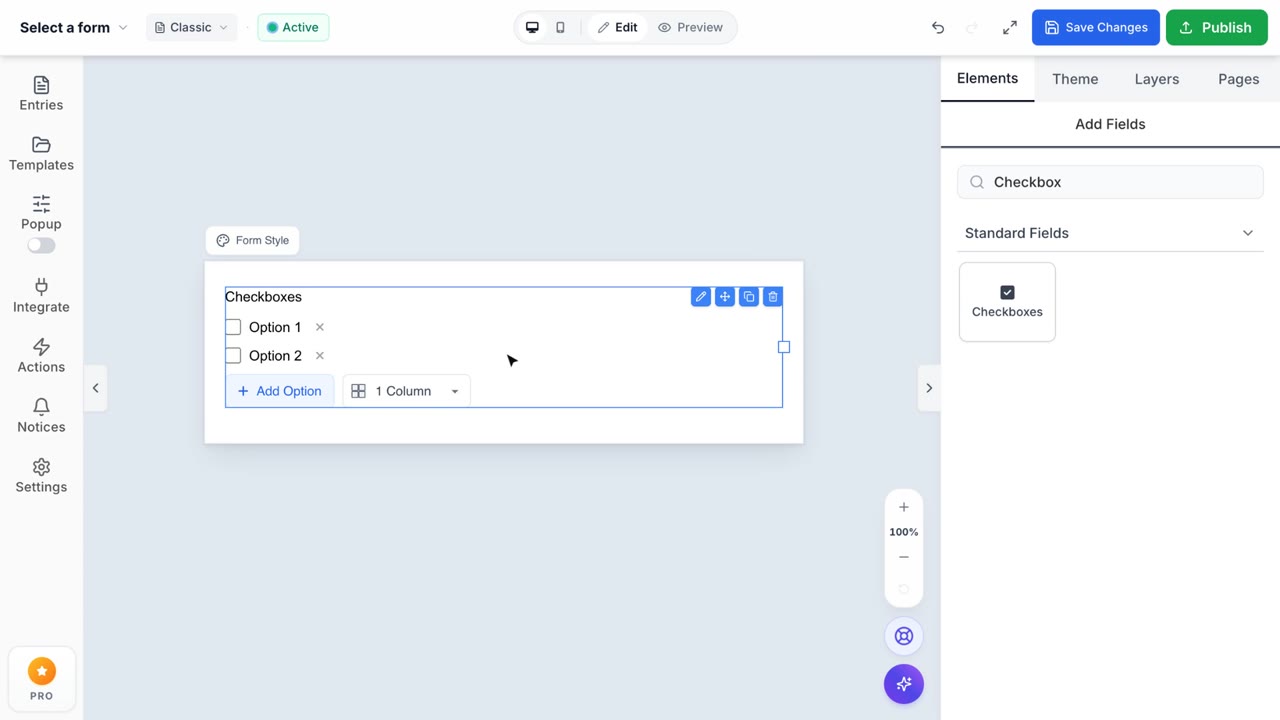
Checkboxes Layout & Options
Build dynamic checklists with custom columns and strict required constraints easily.
1. Instant Multiple-Choice Validation
The Checkboxes field enables respondents to select multiple options from a predefined list. Simply drag and drop the field into your Form Canvas. You can seamlessly add, edit, or remove individual checkbox options directly from the Properties Sidebar to perfectly match your data capture requirements without touching a single line of code.
2. Multi-column Layout Optimization
Don't let long option lists break your form's aesthetic flow. Formpify's built-in Checkbox Row Columns matrix instantly reorganizes your checklist into structured columns. This preserves vertical screen space, reducing scroll fatigue and delivering a more compact, visually balanced layout for your users.
3. Strict Completion Requirements
Enforce data integrity with a single click. By toggling the Required switch, the Formpify engine mandates that users select at least one checkbox before successfully submitting the payload, eliminating incomplete entries and streamlining your downstream processing pipelines.
4. Conditional Logic Engine (Pro)
Unlock dynamic form behavior using Advanced Logic dependencies. You can configure the form to render subsequent fields, hide irrelevant questions, or trigger specific third-party integrations only if a user selects a specific Checkbox sequence. This transforms static forms into highly personalized, adaptive workflows.