
How to Use the Password Field
April 17, 2026
Formpify Academy
Password Field Security
Securely mask sensitive credentials while improving user experience with a built-in visibility toggle.
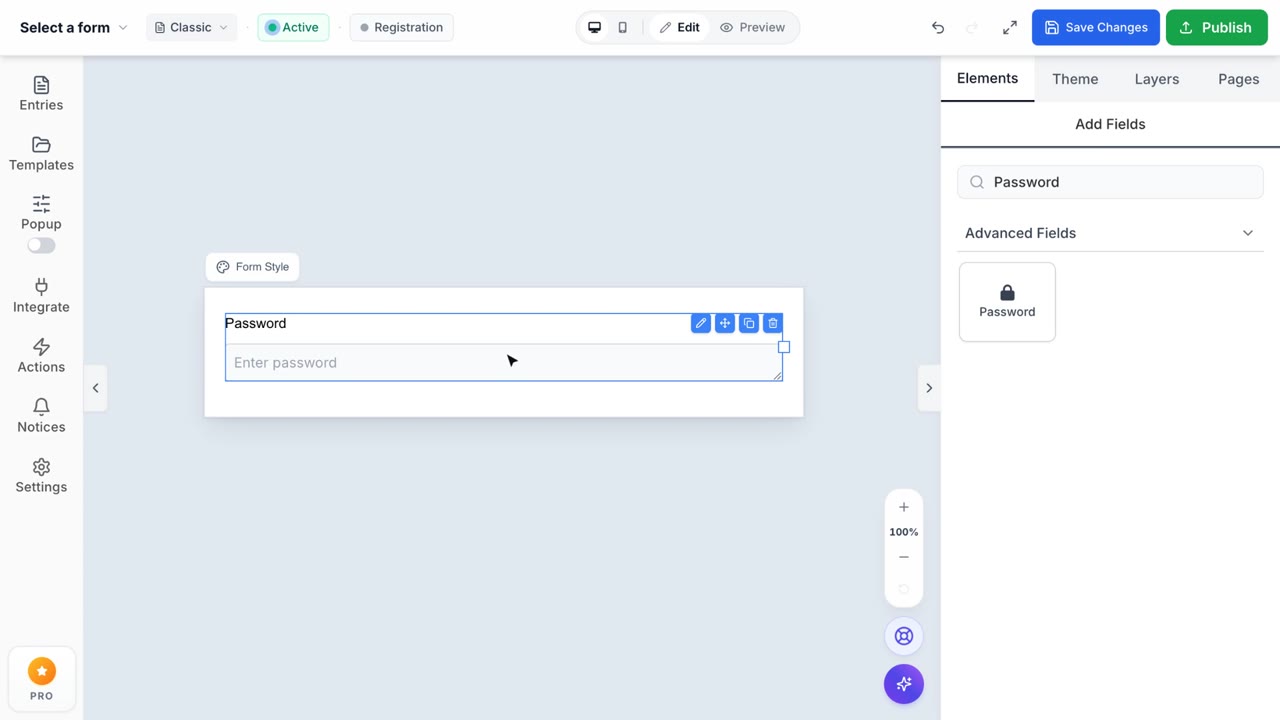
The Password field is an essential component when building user registration forms, secure client portals, or internal authentication flows within Formpify.
Secure Data Masking
Security is paramount when handling sensitive credentials. The Password field protects your respondents by ensuring their input is never exposed to shoulder-surfers.
- Automatic Masking: Characters are instantly converted into obscure dots (••••••••) as the user types.
- Data Protection: Prevents accidental exposure of sensitive information while typing in public or shared spaces.
Built-in Visibility Toggle
While masking is great for security, it can lead to frustrating typos. Formpify's Password field solves this by integrating a seamless "Show/Hide" visibility toggle directly into the input UI.
- Eye Icon Interaction: Users can click the eye icon to temporarily unmask their password and verify accuracy before submitting the form.
- Frictionless UX: Reduces form abandonment caused by mismatched passwords in confirmation fields.