Formpify LogoFormpify.

How to use "Rating Stars" field

April 17, 2026

Access Form Builder 

  • From the Shopify Admin dashboard, navigate to Apps -> Formpify-Visual Form Builder.
  • Click Forms from the left sidebar.
  • Click “Create New Form” or select an existing form to edit.
  • Choose a template and click Use Template.
  • Enter the Form Title and Form Builder interface.
  • You will be directed to the Form Builder screen.

Add a Rating Stars Field

  • In the right panel, open the Elements tab. Under Advanced Fields, click Rating Stars.
  • The Rating Stars field will be.

Edit Rating Stars Field Settings

  • Click the Edit (pencil) icon on the Rating Stars field to open the settings panel.
  • General Section

Label

Sets the name of the Rating Stars field displayed on the form.

Description

Enter additional instructions for users (e.g., Please stars our service from 1 to 5). This text appears below the. 

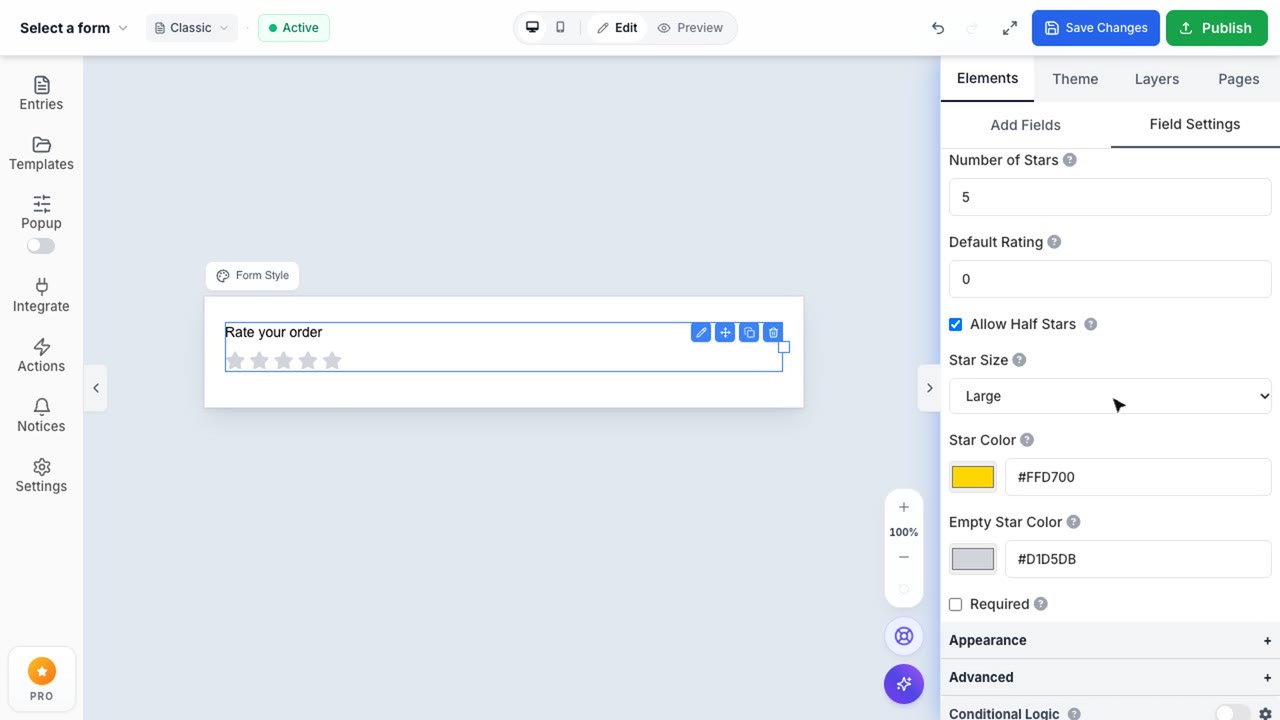
Rating Field Settings

There are three available types:

Number of Stars

Specifies how many stars will be displayed.

Example:

  • 5 → Displays ⭐⭐⭐⭐⭐
  • 10 → Displays ⭐⭐⭐⭐⭐⭐⭐⭐⭐⭐

Default Rating

Sets a pre-selected rating when the form loads.

Enter a numeric value corresponding to the number of stars.

Example:

  • 0 → No star selected
  • 3 → First 3 stars are selected

Star Size: Defines the size of the stars displayed in the field.

Star Color: Defines the color of selected stars.

Empty Color: Defines the color of unselected stars.

Required

Determines whether the Rating Stars field must be completed before submitting the form.

  • Checked → Users must select a rating
  • Unchecked → The field is optional

Appearance Section

Field Label Visibility

Controls whether the field label is displayed.

  • Visible → The label is shown
  • Hidden → The label is hidden

Field Label Margin: Controls spacing (px) around the label (Top, Right, Bottom, Left).

Field Padding: Controls inner spacing (px) inside the field container.

Field Margin: Controls outer spacing (px) around the field.

Custom CSS Class: Allows adding a custom CSS class for styling or scripting.

Advanced Section

Visibility

Controls who can see the field:

  • Visible → Shown to users
  • Hidden → Not visible but still exists
  • Administrative → Visible only to admins

Conditional Logic

Enables conditional behavior for the field.

  • Enabled → Field behavior depends on conditions
  • Disabled → Always visible

Edit Form Wrapper Design

Click Edit Form Wrapper Design above the preview area.

Customize: Layout, Background, Borders, Spacing, Overall form styling.

Duplicate the Rating Stars Field

Hover over the field container. Click the Duplicate icon. A new field with identical settings will be created.

Reorder the Rating Stars Field

Hover over the field container. Click and hold the drag icon. Drag the field to the desired position and release.

Delete the Rating Stars Field

Hover over the field container. Click the Trash icon. The field will be removed from the form.

Save Changes

Click Save Changes in the top-right corner to apply all updates.

Your data is protected

We use industry-standard encryption and comply with GDPR.
Privacy Policy & Terms

Need help?

Our support team replies within 24 hours.
Support Tickets