
How to Use the Static Content Field
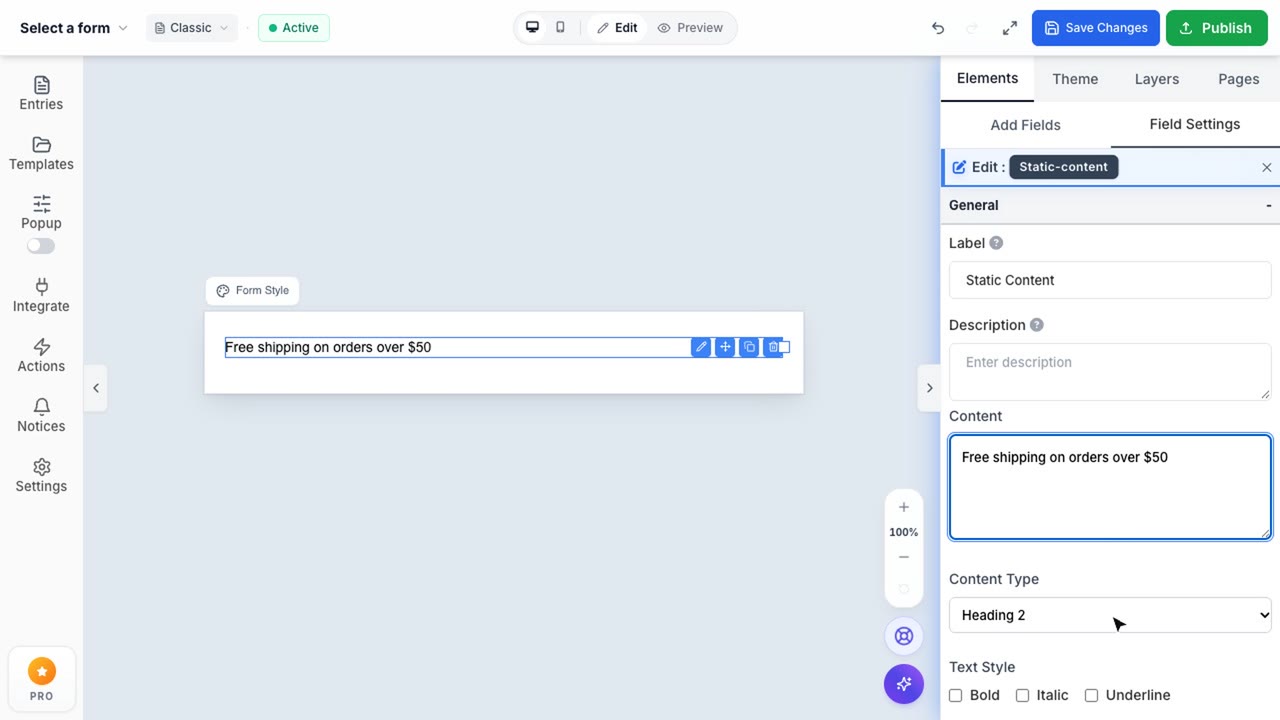
Static Content Field
A versatile field that allows you to embed rich text, customized lists, and interactive social network icons.
The Static Content field in Formpify is an incredibly versatile layout block that allows you to embed rich text, custom headings, formatted lists, and even interactive social network icons directly into your forms.
1. Adding Text and Headings
Unlike standard input fields, the Static Content field does not collect data from the user. Instead, it serves to guide, inform, or stylize your form. You can choose from various Content Types:
- Paragraph: Standard body text to provide instructions or descriptions.
- Heading (H1 - H4): Distinct, bold titles to break up long forms into readable sections.
2. Formatting Lists
Select the List Item content type to create bulleted or numbered lists. You can fully customize the icon that appears next to your list item, adjusting its position (Left/Right), Size, and Color.
3. Embedding Social Network Icons
Want to drive traffic to your social channels? Choose the Social Network Icons content type to instantly embed an interactive grid of links.
- Select Platforms: Pick from a wide array of popular platforms like Facebook, Instagram, Twitter, YouTube, and LinkedIn.
- Grid Configuration: Customize the layout by adjusting the number of columns, gap spacing, and overall grid width.
- Colors: Toggle "Use Original Colors" to instantly apply the brand-accurate colors for each social platform, or manually pick a single uniform color.
- Link Assignment: Paste the direct URL to your profile for each selected icon to make them clickable for your users.
By leveraging the Static Content field, you can elevate your form from a simple data collection tool to a comprehensive landing page experience.