
How to Use the Layers Feature
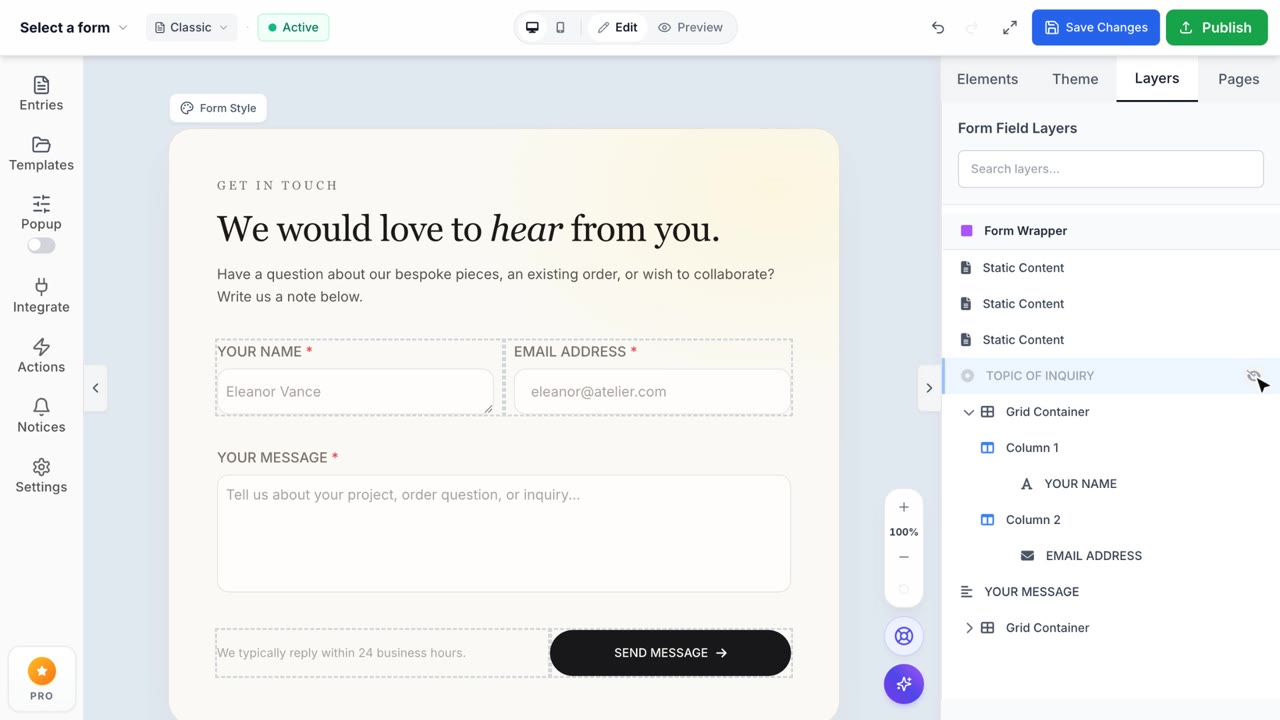
Layers Panel
Manage complex forms easily with the Layers panel. Search, expand nested columns, and toggle visibility without deleting fields.
1. Accessing the Layers Panel
To view your form's hierarchy, look at the right sidebar in the Form Builder and click on the Layers tab. This panel gives you a complete bird's-eye view of your entire layout, making it especially useful for managing complex forms with dozens of fields.
2. Expanding Nested Fields
If you are using Grid Layouts to place fields side-by-side, the fields inside the grid will be nested. Simply click the chevron icon next to the "Grid Container" layer to expand it and reveal the columns and fields hidden inside.
3. Toggling Field Visibility
You can temporarily hide any field from the canvas without deleting it. Hover over a layer and click the Eye icon. The field will be hidden on the canvas, allowing you to focus on other sections of your form. Click the icon again to make it visible.
4. Searching for Fields
If your form has many fields, you don't need to scroll endlessly. Use the Search bar at the top of the Layers panel. Just type the name of the field (e.g., "Phone"), and the panel will instantly filter the hierarchy to show exactly what you need.