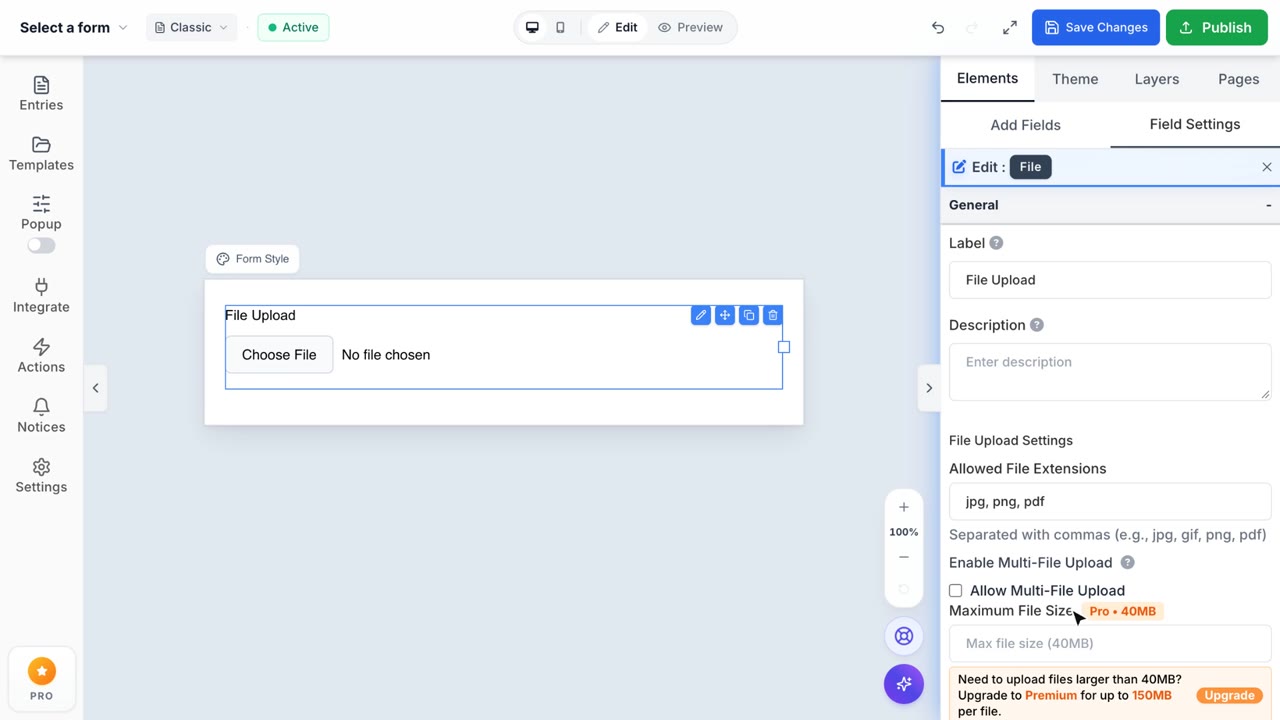
How to use the "File Upload" Field
Access Form Builder
- From the Shopify Admin dashboard, navigate to Apps -> Formpify-Visual Form Builder.

- Click Forms from the left sidebar.

- Click “Create New Form” or select an existing form to edit.

- Choose a template and click Use Template.

- Enter the Form Title and Form Builder interface.

- You will be directed to the Form Builder screen.

Add an Upload Field
In the right panel, open the Elements tab. Under Basic Fields, click File Upload.

The Upload field will be inserted into the form preview area.

Edit Upload Field Settings
Click the Edit (pencil) icon on the Upload field to open the settings panel.

General Section
- Label
Sets the name of the Upload field displayed on the form.
- Description
Enter additional instructions for users (e.g., Upload your ID card in JPG or PDF format).
This text appears below the field label. - File Upload Settings - Allowed File Extensions
Specify which file types users can upload.
- Format: separated by commas
- Example:jpg, png, pdf
If left empty → system may allow all supported file types (depending on global configuration).
- Enable Multi-File Upload
Checkbox: Allow Multi-File Upload
- Unchecked → user can upload only one file
- Checked → user can upload multiple files
- Maximum File Size (Premium – 150MB): This setting controls the maximum allowed size per file.
- Required
Checkbox: Required
- Checked → user must upload at least one file before submitting the form
- Unchecked → upload is optional.
Appearance section
The Appearance tab allows you to customize how the File Upload field is displayed on the form.

- Field Label Visibility
Controls whether the field label is shown.
- Visible – Displays the field label.
- Hidden – Hides the field label from the form.
- Field Label Margin
Adjusts the spacing around the field label. You can set values (in px) for: Top, Right, Bottom, Left
- Field Padding
Controls the inner spacing inside the upload field container. Set padding individually (in px) for: Top, Right, Bottom, Left.
- Field Margin
Controls the outer spacing of the entire upload field relative to other fields. Set margin individually (in px) for: Top, Right, Bottom, Left.
Advanced section
The Advanced tab controls the field visibility behavior.
Visibility Options:
- Visible
The field is displayed to all users. - Hidden
The field is not displayed on the form. - Administrative
The field is visible only to administrators and hidden from frontend users.
Reorder the Upload Field
- Hover over the Upload field container in the preview.
- Click and hold the drag icon (move icon).

- Drag the field up or down in the form layout.
- Release the mouse at the desired position.
- The system will show a placeholder indicating where the field will be placed.

Duplicate the Upload Field
- Hover over the Upload field container.
- Click the Duplicate icon.

- A new Upload field with identical settings will be created.

Delete the Upload Field
- Hover over the Upload field container.
- Click the Trash icon.

- The field will be removed from the form.
Edit Form Wrapper Design
- Click Edit Form Wrapper Design above the preview area.
- Customize: Layout, Background, Borders, Spacing, Overall form styling.

Save Changes
Click Save Changes in the top-right corner to apply all updates.