
How to Use the Dropdown Field
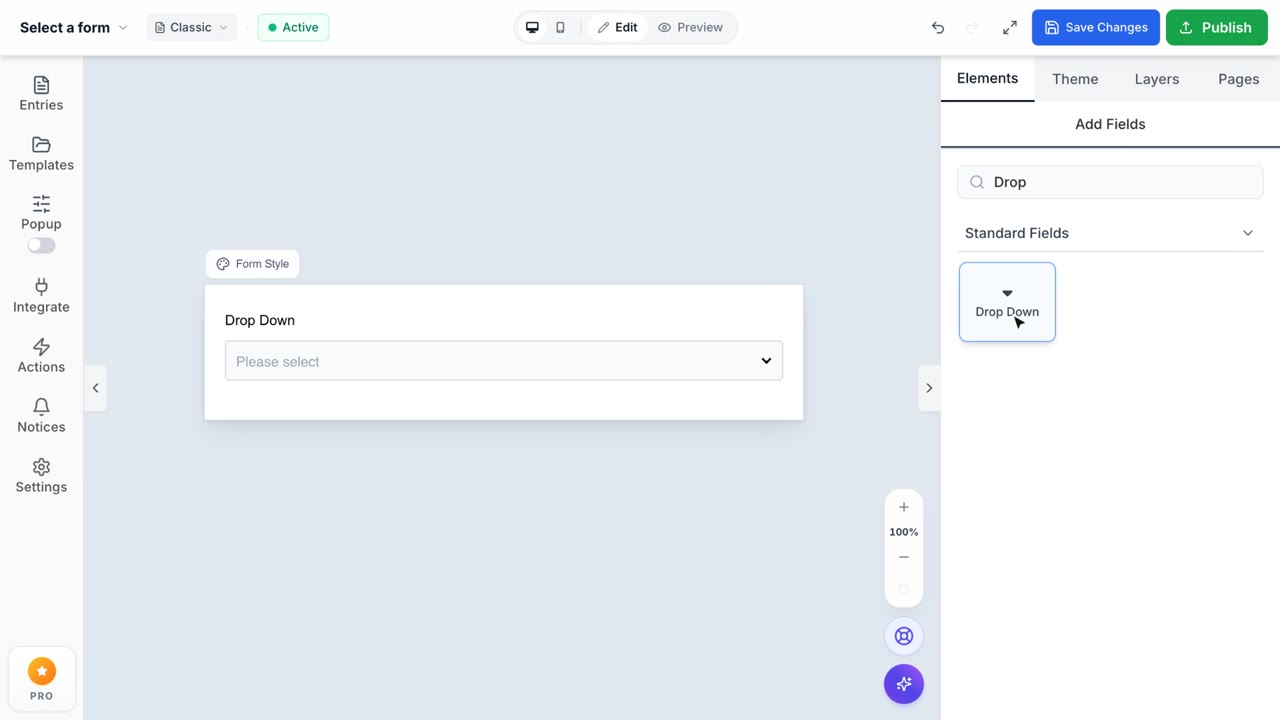
Dropdown Selection Menus
Provide clean, single or multi-choice selection menus perfect for long lists of options.
The Dropdown field provides your users with a clean, single-choice selection menu, ideal for conserving form layout space when dealing with long lists of options. However, it can also be configured to allow multiple selections.
Customising Dropdown Options
In the Form Builder, simply drag the Dropdown element from the Standard Fields panel onto your canvas. When you click the field to access its settings, you can define your custom options in the right sidebar.
For each option, you can establish:
- Label: The text displayed to the user in the form interface.
- Value: The internal data value captured upon submission.
Enabling Multiple Selection
If you want users to pick more than one option from the list without cluttering the screen with checkboxes, you can toggle the Enable Multiple Selection setting located under the Advanced tab of the field's settings.
When enabled, the dropdown will adapt dynamically, showing selected options as dismissible tags within the input field.