
How to Use the Submit Button
April 17, 2026
Formpify Academy
Submit Button Design
Customize the final interaction point of your form to maximize conversion rates.
The Submit button is the final interaction point of your form. Formpify allows you to fully customize its appearance to match your brand's style and maximize conversion rates.
Customization Options
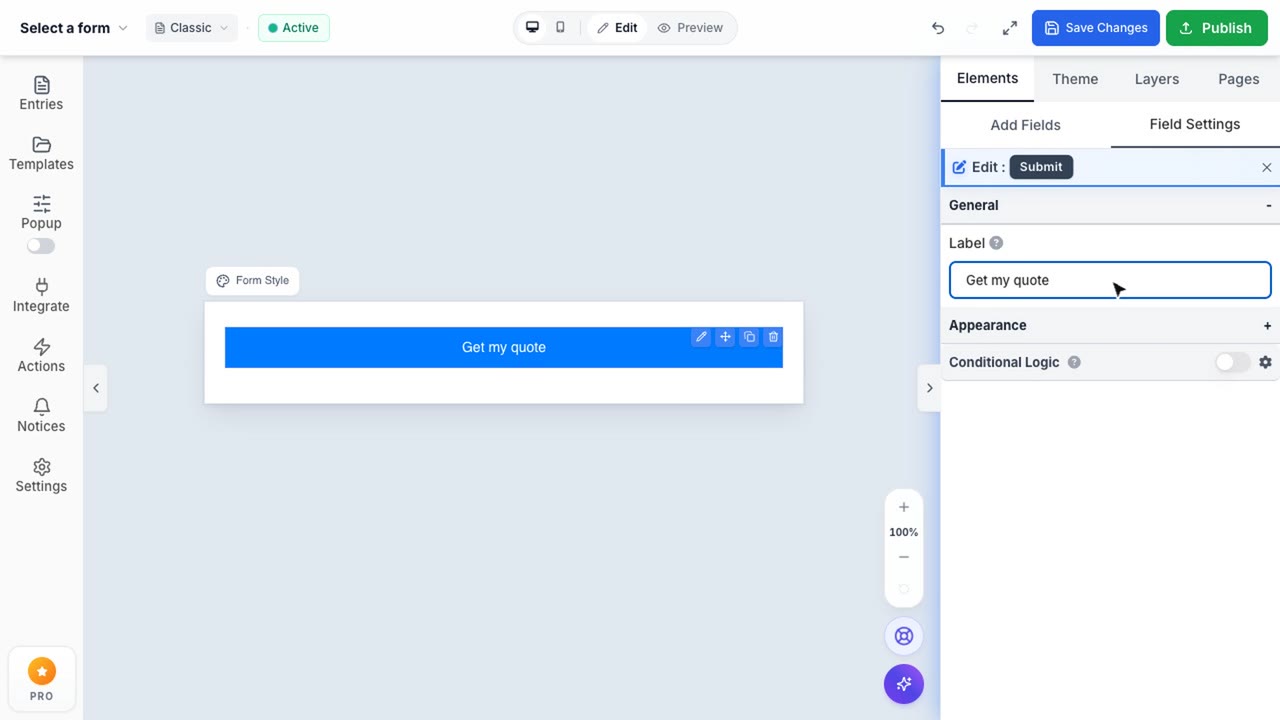
When you select the Submit button, the Right Sidebar will update to show several styling options:
- Button Text: Change the default "Submit" text to something more actionable, like "Register Now", "Get Started", or "Download Ebook".
- Alignment: Align the button to the Left, Center, Right, or make it Full Width to span across the entire form container.
- Design Tweaks: Although not all shown in the quick preview, you can navigate to the Theme tab to globally adjust the button's background color, text color, border radius, and box shadow.
Best Practices
Always use action-oriented verbs for your button text. Ensure the button has a high-contrast color compared to the form background so it stands out clearly to the user.