
How to Use the Switch Field
April 17, 2026
Formpify Academy
Switch Field Opt-ins
A modern alternative to checkboxes with customizable data payloads for powerful backend integrations.
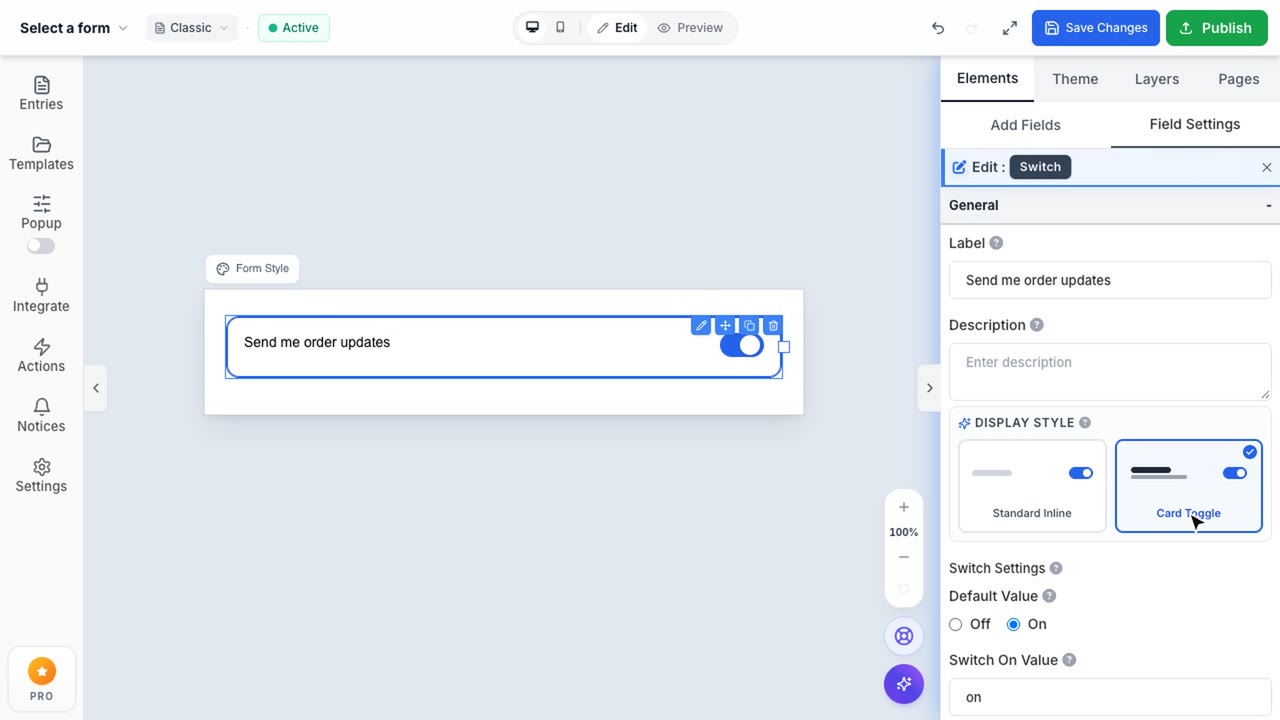
The Switch field is a modern, mobile-friendly alternative to traditional checkboxes, perfect for opt-ins, terms agreements, or simple Yes/No questions.
Customizing the Data Payload
Unlike standard switches that only submit true or false, Formpify gives you complete control over the submitted data payload. This is incredibly useful when integrating with CRM systems or marketing tools.
- Switch On Value: Change the submitted value to match your backend needs (e.g., "Subscribed", "Agreed", "Yes").
- Switch Off Value: Define explicitly what should be submitted if the user leaves it disabled (e.g., "Not Subscribed", "Declined", "No").
- Default State: Pre-fill the switch to be turned On or Off by default when the form loads.
Brand Customization
Ensure the switch perfectly matches your brand identity:
- On Color: Customize the active state color using a precise HEX code.
- Off Color: Change the inactive track color to blend smoothly with your form's background.