
How to Use Theme Color Settings
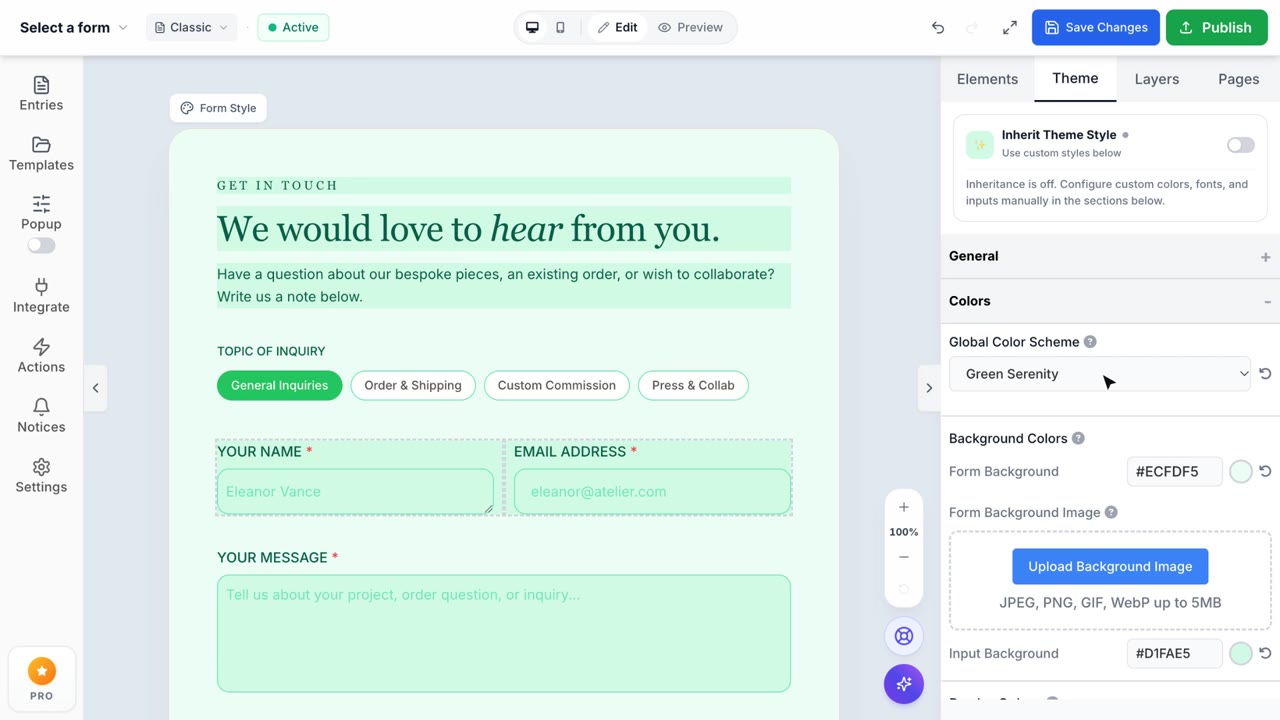
Color Settings in Theme Tab
Easily customize the visual aesthetic of your form by fine-tuning individual colors.
1. Access the Theme Tab
To begin customizing the look and feel of your form, open the Form Builder and navigate to the right sidebar. Click on the Theme tab located next to the Elements tab.
2. Open the Colors Settings
Inside the Theme tab, you will see several accordions. Click to expand the Colors section. This panel contains all the necessary settings to perfectly align your form with your brand's visual identity.
3. Choose a Global Color Scheme
If you want a quick start, use the Color Scheme dropdown at the top. This allows you to instantly apply pre-defined palettes (like Light, Dark, or Brand Color palettes) to all elements across your form simultaneously.
4. Fine-Tune Backgrounds & Borders
Scroll down to manually adjust specific areas:
- Form Background: Change the overall canvas color or upload a background image.
- Input Background: Adjust the inner color of your text fields and dropdowns.
- Border Colors: Tweak the borders for default, hover, and focus states to provide excellent visual feedback to your users.
5. Customize Texts & Buttons
Further down, you will find settings for Text Colors (including Primary Text, Labels, and Placeholders) and Submit Button Colors. Adjusting the Submit Button's background and text colors is a crucial step to make your primary Call-to-Action (CTA) stand out.
Note: All color changes will instantly reflect on the live preview canvas, allowing you to iterate on your design rapidly.